
Is Your WordPress Site Actually Tracking Leads? A Simple Checklist for GA4, Tag Manager and Meta
If you're spending money on ads or content and can't say which pages, campaigns, and actions bring in leads, this checklist shows you what to check, what's probably broken, and what to do about it.
You're running ads. Your site gets traffic. People fill out your contact form.
Now answer this: which ad, page, or campaign produced the lead you got yesterday?
If the answer is "I think it was the Google one?" or "Analytics says something," there's a good chance your tracking has gaps. Maybe the form event never fires. Maybe the Meta Pixel counts one lead three times, which feels great until you realize you did not, in fact, get three leads. Maybe GA4 has been installed twice since 2023 and nobody noticed.
I run into these problems on WordPress sites all the time, and almost none of them look broken from the outside. The site works. The reports just quietly don't tell the truth.
Here's a checklist you can run yourself. Each item takes a few minutes, and each one explains why it matters, so you're not just ticking boxes.
What "tracking leads" actually means
For a typical small business site, you want to know when someone:
- Submits a form
- Clicks a phone number or email link
- Makes a purchase (if you sell online)
- Books an appointment
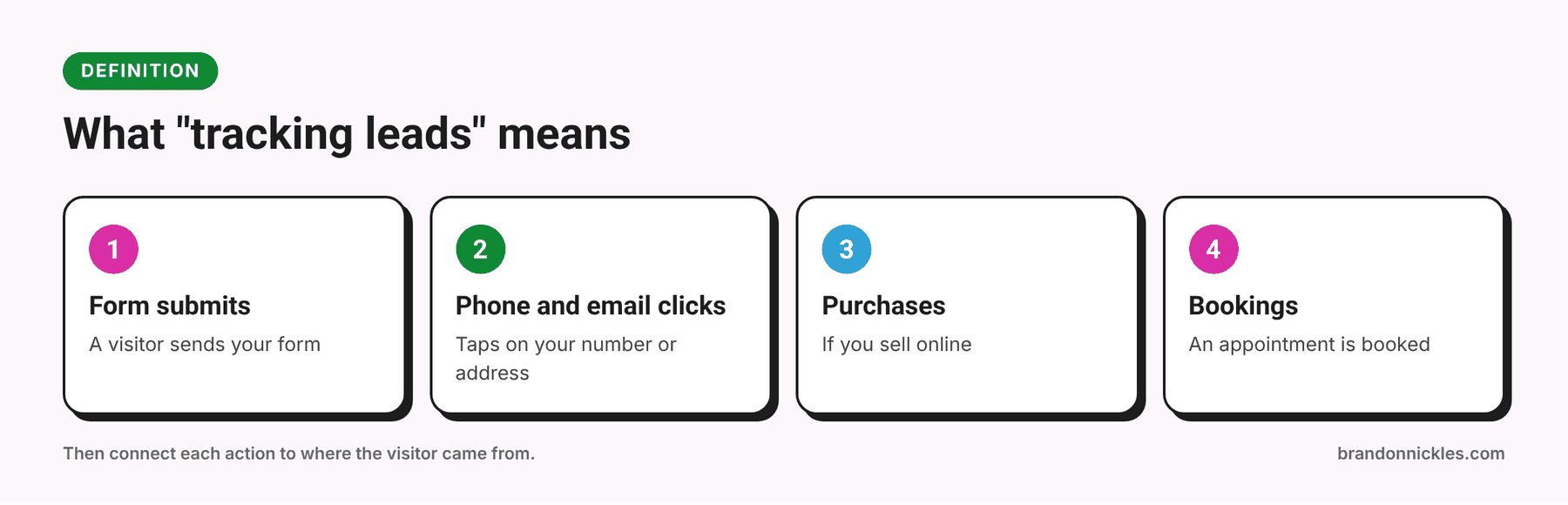
And you want those actions connected back to where the visitor came from: Google Ads, Meta ads, organic search, an email, or a link on another site. That's called attribution, and it's what lets you say "this campaign works" or "this one is burning money" without guessing.
That takes several pieces working together:
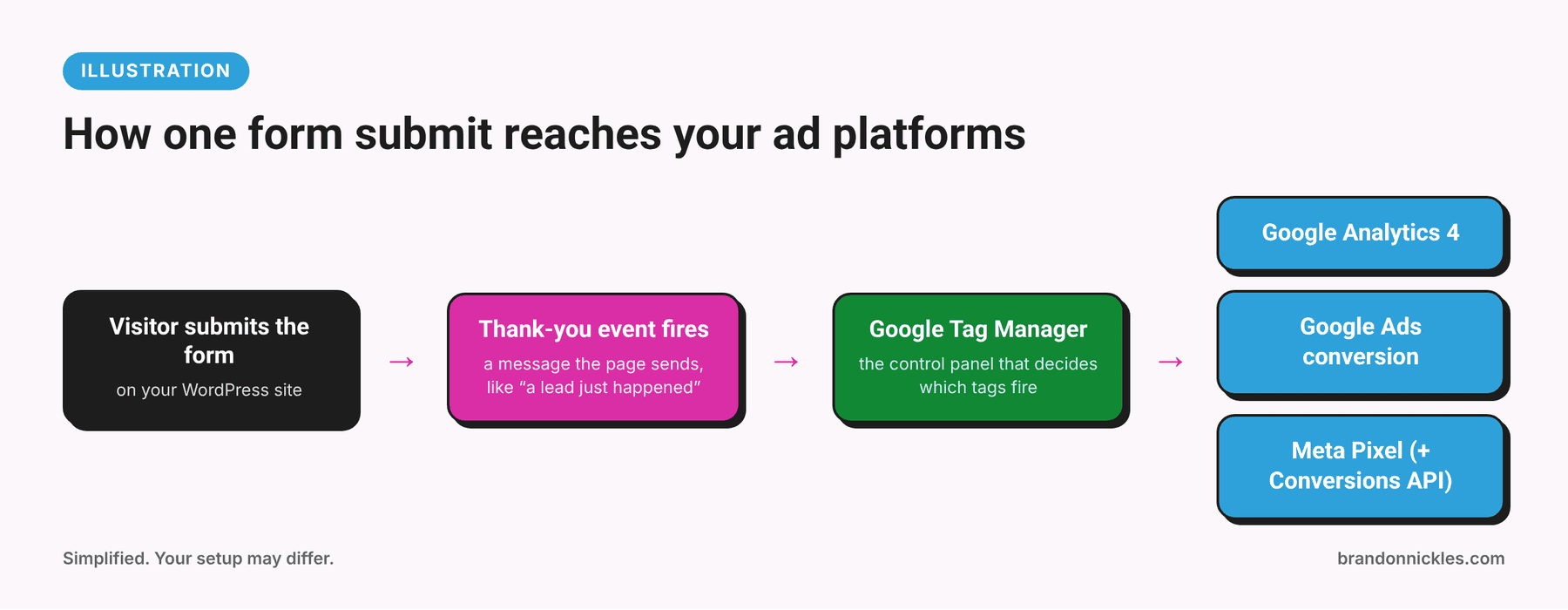
- Google Analytics 4 (GA4) measures what people do on your site
- Google Tag Manager (GTM) is the control panel that fires your tags (the small snippets of code that send data to GA4, Google Ads, Meta, and others) without editing your WordPress theme every time
- Ad platform tags, like the Meta Pixel and Google Ads conversion tracking, tell those platforms which clicks turned into results
- Consent settings make sure all of the above respects your visitors' choices
If one piece is broken, the whole picture is wrong, and you'll make budget decisions off bad data. That's worse than having no data, because bad data feels trustworthy.
How to use this checklist
Go through it in order. Don't fix everything as you go. Just mark what you find. Then fix the biggest problems first (usually duplicate tags and missing conversions).
You'll need access to your WordPress dashboard, your GA4 account, your GTM container, and your Meta Business account (or Events Manager). If you don't know who owns those accounts, that's your first finding.
The checklist
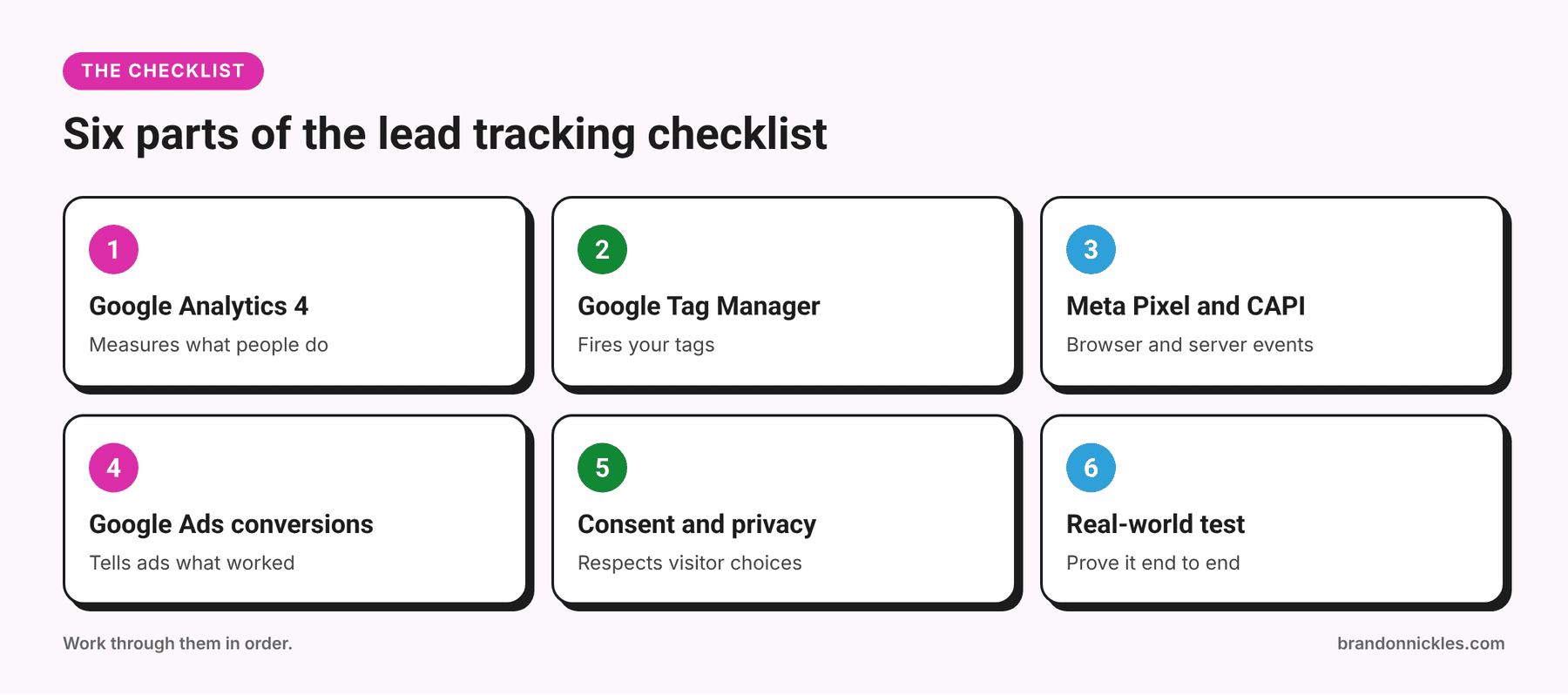
Part 1: Google Analytics 4 (GA4)
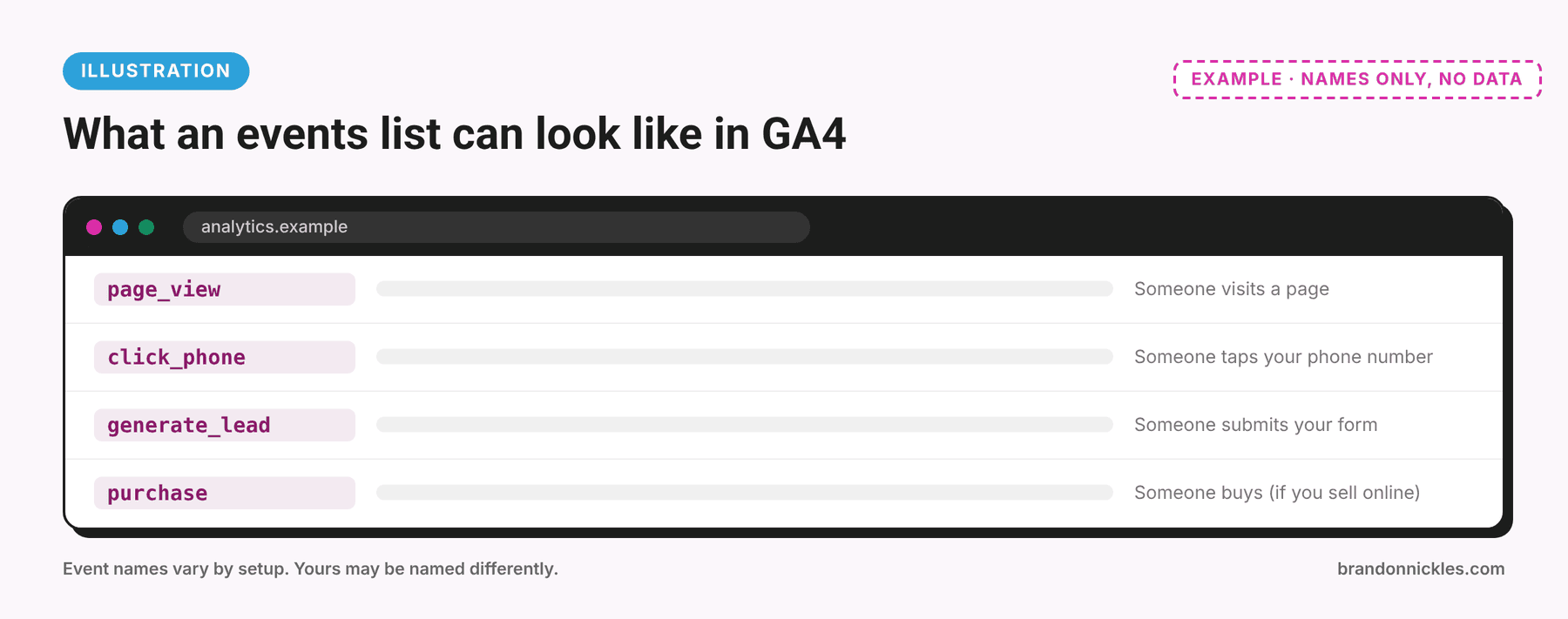
- You have one GA4 property with a web data stream for your site, and you know who owns the account. If the person who set it up was a former agency or freelancer, make sure you have admin access. Losing access to your own data is more common than it should be.
- GA4 is installed once. Not hard-coded in your theme and added by a plugin and added in Tag Manager. Duplicates can double-count page views and events. To check: right-click your page, choose View Page Source, and search for your measurement ID (it starts with
G-). If it shows up more than once in ways that fire, that's a problem. - Your important actions are set up as events, and marked as key events. GA4 renamed "conversions" to "key events." Form submissions, phone clicks, and purchases should be key events. Page views alone aren't leads.
- Event names are consistent. If one form sends
contact_formand another sendsform_submit_contact, your reports turn into a puzzle. - Your own visits are excluded. Set up internal traffic filtering so you and your team aren't inflating your numbers.
- You've checked it works. Use Admin → DebugView, or the Realtime report, while you test.
Common pitfall: Treating "form views" or "page views of the thank-you page" as the same thing as "form submissions." They're not. A thank-you page that anyone can reach directly will record phantom leads.
Part 2: Google Tag Manager (GTM)
- The GTM container is installed once. It needs a snippet in the head and one right after the opening body tag, or an equivalent method such as a trusted plugin. Make sure there are no leftover hard-coded tags doing the same job as tags inside GTM.
- Every tag has a trigger you can explain. "Fires on form submit." "Fires on click of links starting with
tel:." Not "fires on all pages, I think." - Form tracking matches how your form actually works. This is where WordPress gets tricky. Some forms redirect to a thank-you page. Some use AJAX and never reload the page, which means thank-you-page tracking never fires. Different form plugins and builders (Gravity Forms, WPForms, Contact Form 7, Elementor Forms, and others) behave differently, and a setup that works on one won't necessarily work on another.
- You test in Preview mode (Tag Assistant) before publishing, and you add a version name or note when you publish changes. Future you will thank you.
- Tags are named clearly. "GA4 – Event – Contact Form Submit" beats "Tag 14" every time.
- Nothing unknown is in there. Old tags from agencies, past campaigns, and tools you no longer use are worth reviewing. If you don't know what a tag does, find out before you delete or keep it.
Common pitfall: Publishing changes without testing. GTM makes it easy to ship a mistake to your live site in about four clicks.
Part 3: Meta Pixel and Conversions API
- The Meta Pixel is installed once, in GTM or by one other method, not several.
- Your Pixel fires standard events like
LeadorPurchaseon the actions that matter, not justPageView. - You've tested in Meta Events Manager. Use the Test Events tab and the Meta Pixel Helper browser extension to watch events arrive while you test.
- You've considered the Conversions API (CAPI). Browser-only tracking can lose data because of ad blockers, browser privacy features, and consent choices. CAPI sends events from your server as well, which can make your data more complete.
- Events are deduplicated. If you send the same event from both the Pixel and CAPI, they should share an
event_idso Meta counts it once, not twice. - Your domain and events are set up in Meta's business tools the way Meta currently requires. Their requirements change, so check Events Manager for any warnings or diagnostics.
Common pitfall: Setting up CAPI without deduplication. Now every lead shows up twice, your numbers look fantastic, and your reality does not.
Want me to run this for you?
If you're reading this and realizing you're not sure who set up your tracking or whether it works, I can audit and fix it. I set up Google Tag Manager, GA4, Meta Pixel and Conversions API, and event tracking on WordPress sites, and I test everything before I call it done.
Back to the checklist.
Requirements depend on where your visitors are and what you track. For legal advice, talk to a lawyer. For making sure your tags behave the way your banner says they do, that's a technical check I can do.
This is the most important section, and the one people skip.
Step-by-step: how to test a form properly
If you only do one thing from this post, do this:
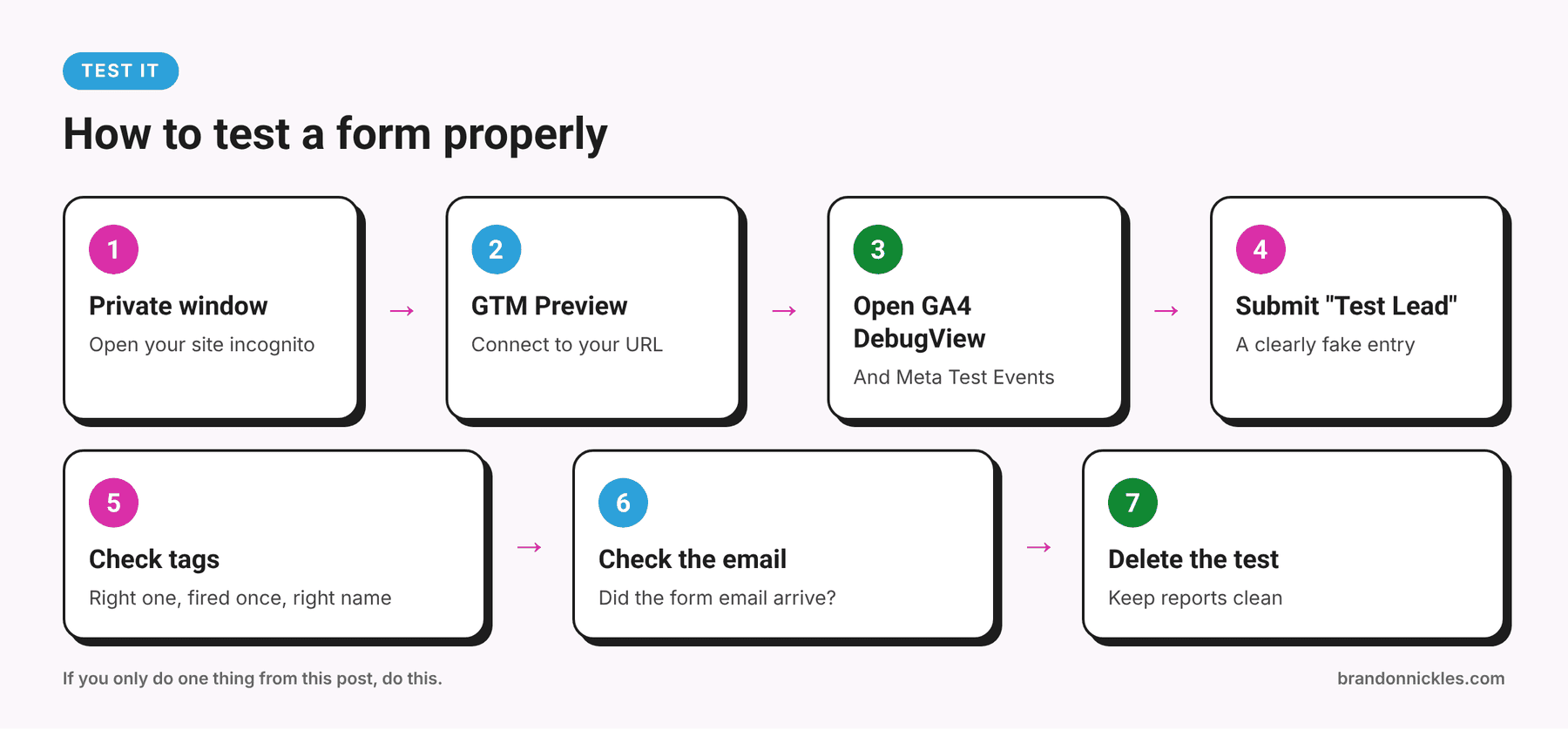
- Open a private/incognito window.
- Open GTM and click Preview, enter your site URL, and connect.
- In another tab, open GA4 DebugView, and Meta Events Manager → Test Events.
- On your site, fill out the form with a clearly fake entry (like "Test Lead").
- Watch GTM Preview. Did the right tag fire, and only once?
- Check GA4 DebugView. Did your event arrive with the right name?
- Check Meta Test Events. Did
Leadarrive, and if you use CAPI, was it deduplicated? - Check that the form email actually arrived.
- Delete the test entry from your CRM or form entries, so it doesn't pollute your reports.
Common problems I find
- Tracking that "worked" until a theme, plugin, or form update changed something
- The same tag installed three different ways
- A thank-you page that anyone can reach directly, counting phantom leads
- Forms that use AJAX, so thank-you-page tracking never fires
- No test data, because nobody has ever submitted a test lead
- Ad campaigns optimizing for the wrong goal
- Nobody knows who owns the accounts
- A consent banner that doesn't actually control the tags
None of these show up on the surface. Your site works. Your reports just quietly don't tell the truth.
What if the checklist turned up problems?
That's normal, and fixable. Start with the biggest issues first:
- Duplicate tags (they distort everything)
- Missing or incorrect conversions (your ad platforms need real signals)
- Form tracking that doesn't match your form
- Consent behavior
- Reporting, so you can actually use the data
Resist the urge to add new tools until the existing ones work. A cleaner setup beats a bigger one.
How I can help
On my tracking and attribution setup service, I work on WordPress sites to set up Google Tag Manager, GA4, Meta Pixel and Conversions API, event tracking for forms, calls, and purchases, Google Ads conversion tracking, and consent and privacy basics. I test everything in preview and debug modes, and I back up your site first. I quote before I start, so there are no surprises.
Reporting dashboards come after that, as an optional next step, so you can see which campaigns and pages are producing leads.
Frequently asked questions
Do I need Google Tag Manager, or can I just add GA4 to WordPress?
You can add GA4 with a plugin or code snippet, but GTM gives you one place to manage all of your tags, test changes before they go live, and add events without editing theme files. For more than one tag, GTM usually makes life easier.
What's the difference between the Meta Pixel and the Conversions API?
The Pixel runs in the visitor's browser. The Conversions API sends events from your server to Meta. Many setups use both, with deduplication so each event is counted once.
Why do my GA4 and Google Ads numbers not match?
They count differently. Attribution models, time zones, conversion delays, and consent settings can all cause differences. Small gaps are normal. Large gaps usually mean duplicate or missing tags, or different conversion definitions.
Do I need a cookie banner?
It depends on your visitors' locations, the tools you use, and the laws that apply to you. I can handle the technical setup, but legal advice should come from a lawyer.
How often should I check my tracking?
After any change to your theme, forms, plugins, or ad setup, and then on a regular schedule. A quick test lead every so often can catch a silent failure before it costs you a month of data.
The bottom line
If you're paying for traffic, you're entitled to know what it produces. The checklist above will tell you quickly whether your tracking is solid, shaky, or pretending.
Email me at Brandon@brandonnickles.com and tell me what you're running. I reply the same day.