
What Happens When a WordPress Site Gets Hacked (and How to Make Sure It Doesn’t Happen Again)
A practical guide for small business owners: how to tell your site has been hacked, what to do in the first hour, what a proper cleanup looks like, and how to lock things down so you're not doing this again next year.
You search for your own business on Google and the result says "This site may be hacked." Or a customer emails to ask why your website sent them to an ad for something you definitely don't sell. Or your host suspends your account with a message that begins, "We have detected suspicious activity."
Your stomach drops. That's a normal reaction, and I'd be more worried if it didn't. But here's the part nobody tells you in the moment: this is fixable, and it's far more common than most business owners think. You did not personally offend the internet. Most WordPress hacks are automated and boring.
What matters now is doing the right things in the right order. Here's what actually happens when a WordPress site gets hacked, what a real cleanup involves, and how to keep it from happening again.
How to tell your site has been hacked
Sometimes it's obvious, with a defaced homepage and a message from someone calling themselves something dramatic. Most of the time it's quieter. Watch for:
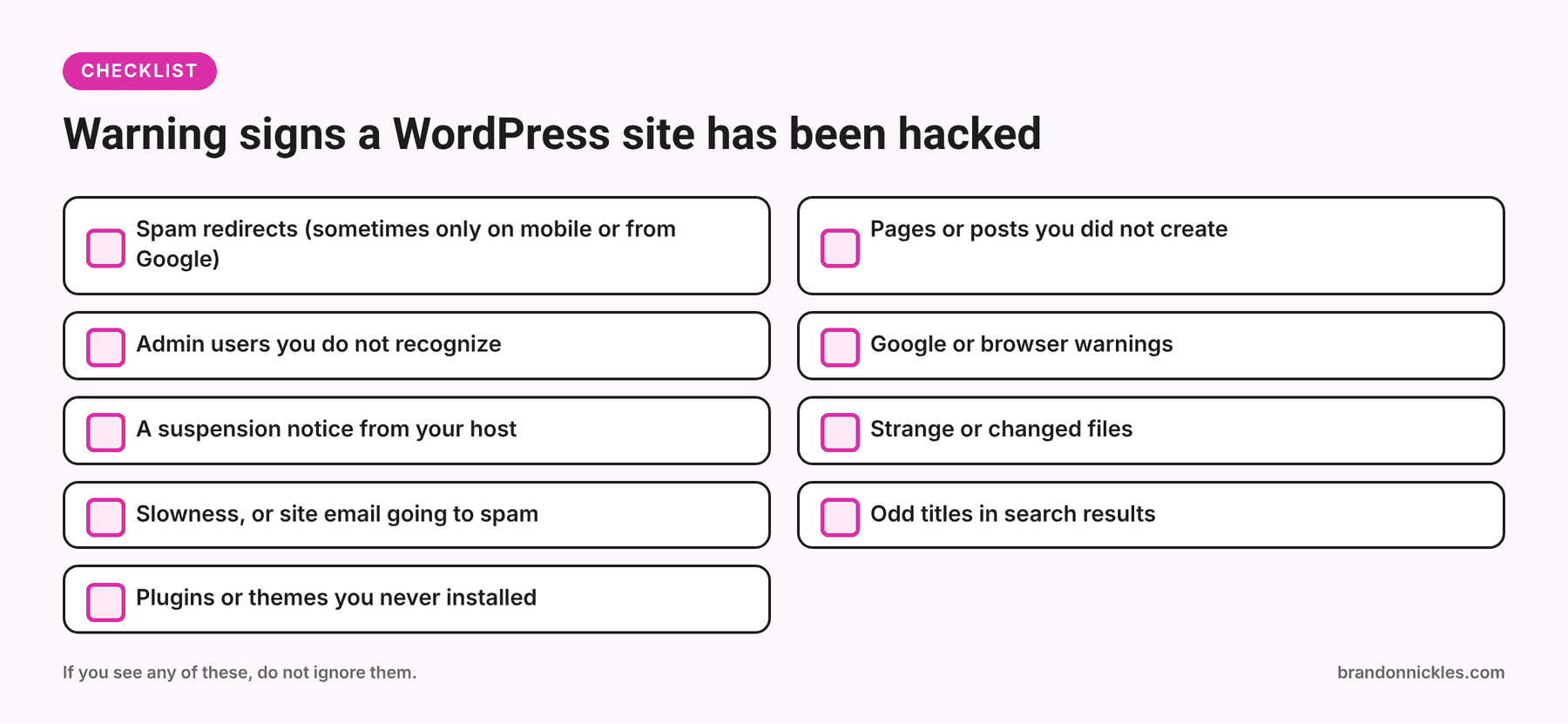
- Spam redirects. Visitors get sent to a different site. Sneaky versions only do this on mobile, only when people arrive from Google, or only for visitors who aren't logged in, which is why you might not see it yourself.
- Pages or posts you didn't create, usually full of spammy keywords or links.
- Admin users you don't recognize in Users → All Users.
- Warnings from Google or your browser that the site is dangerous or deceptive.
- A suspension notice from your host, or a malware report.
- Strange files in your WordPress folders, or changes to files you didn't touch.
- Unexpected slowness, or your site's outgoing email suddenly stops working or goes to spam.
- Search results showing weird titles or descriptions for your pages, such as text in another language or about products you don't sell.
- Plugins or themes you never installed.
If you see any of these, don't ignore it and hope it goes away. Hacked sites rarely heal themselves, and the longer malware sits there, the more damage it does to your visitors and your reputation.
What to do in the first hour
Take a breath, then work through this list in order.
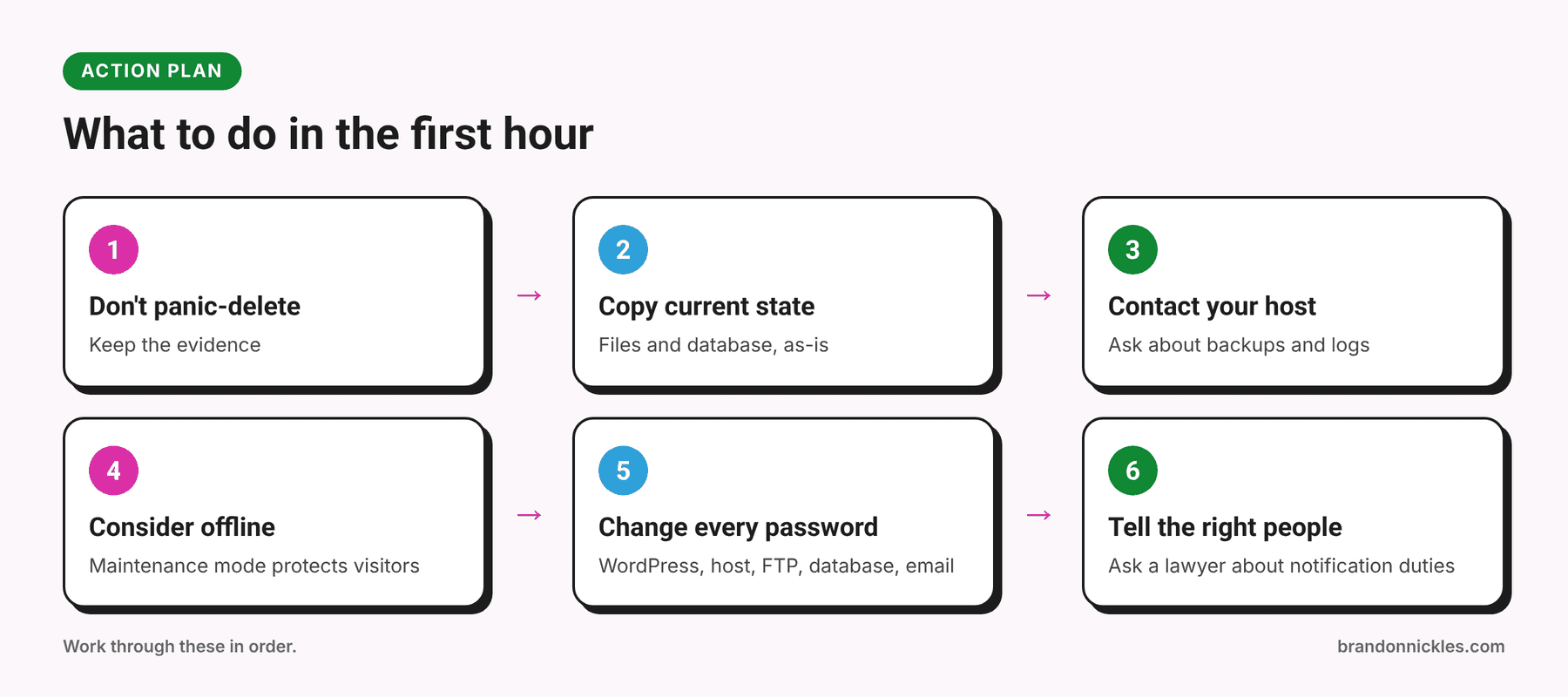
1. Don't panic-delete things
It's tempting to start yanking out files. Don't. You can destroy the evidence you need to figure out how they got in, or break the site further.
2. Take a copy of the current state
Download the site files and database as-is, even though they're infected. This is your "evidence" copy. You'll likely restore from a clean backup, but this copy helps with diagnosis and is a safety net in case something goes wrong during cleanup. Label it clearly so nobody accidentally restores it later.
3. Contact your host
Tell them what you're seeing. Some hosts can help identify infected files, check server logs, or restore a recent backup. Ask what backups they have, how far back they go, and whether they've seen the same account flagged on their end.
4. Consider taking the site offline
If your site is redirecting people to something malicious or collecting information from visitors, putting it into maintenance mode briefly is better than leaving it live. It's a hit to your pride, but it protects your customers.
5. Change every password
Not just WordPress. All of these:
- Every WordPress admin account
- Hosting account / control panel
- FTP/SFTP accounts
- Database password (you'll need to update
wp-config.phptoo) - Email account tied to the site
Do this from a clean computer. If your own machine is infected, new passwords can be stolen as fast as you set them. And no, "Password123!" with a new exclamation point doesn't count.
6. Tell the right people
If customer data may have been exposed (an online store, a membership site, form submissions with personal info), you may have legal or contractual notification duties depending on where you and your customers are. That's a question for a lawyer, not for me, but don't wait to ask it.
What a real cleanup involves
This is where "install a security plugin and run a scan" falls short. A scan can find some problems, but attackers usually leave a way back in, such as a hidden file, a rogue admin user, or a scheduled task that quietly reinstalls the malware after you "clean" it. A proper cleanup looks like this:
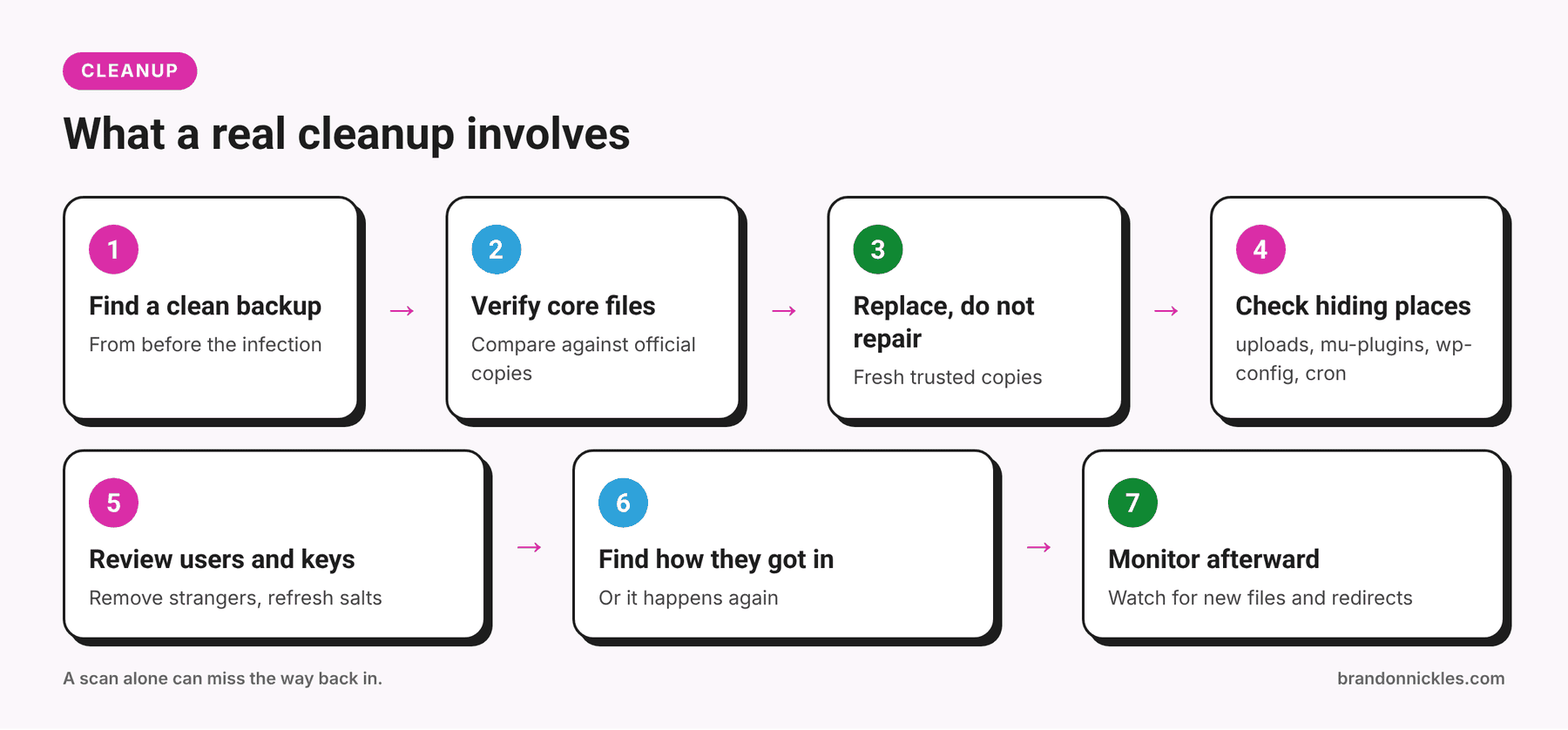
- Find a clean backup. Restoring from a backup taken before the infection is often the cleanest path. The catch: you need to know when the infection started, and the backup has to be clean. A backup taken after the hack just restores the hack.
- Verify WordPress core files. If you have WP-CLI access,
wp core verify-checksumscompares your core files with the official ones and flags anything modified or unexpected.wp plugin verify-checksums --alldoes the same for plugins from the WordPress.org directory. - Replace, don't repair. Reinstall WordPress core, plugins, and themes from fresh, trusted copies. Hand-editing an infected core file is how bits of malware get left behind.
- Check the usual hiding places: -
wp-content/uploads/should contain images and documents, not PHP files -wp-config.phpand.htaccessfor injected code -wp-content/mu-plugins/(must-use plugins load automatically and rarely get checked) - Themefunctions.phpfiles - Files with odd names that look almost like real WordPress files - Scheduled tasks (WordPress cron) that you don't recognize - Check the database. Malware can be hidden in posts, widgets, and options, and spam content can be injected into the database itself.
- Review users. Delete admin accounts you don't recognize. Reset passwords for everyone else.
- Refresh your secret keys. Replace the security keys and salts in
wp-config.php. This logs everyone out and invalidates any stolen login sessions. - Remove nulled or pirated plugins and themes. "Free" copies of premium plugins are a common way malware gets in. Replace them with legitimate licenses.
- Find out how they got in. If you only clean the symptoms, you'll be hacked again. The cause is often an outdated or abandoned plugin or theme, a weak or reused password, or a compromised account on the hosting side.
- If Google flagged the site, request a review. Once the site is actually clean, use Google Search Console to request a review of the security issue. Don't request one before you've cleaned everything. A failed review slows you down.
- Monitor afterward. Check for new files, new users, and any returning redirects for a while after the cleanup.
Mistakes that make hacks worse
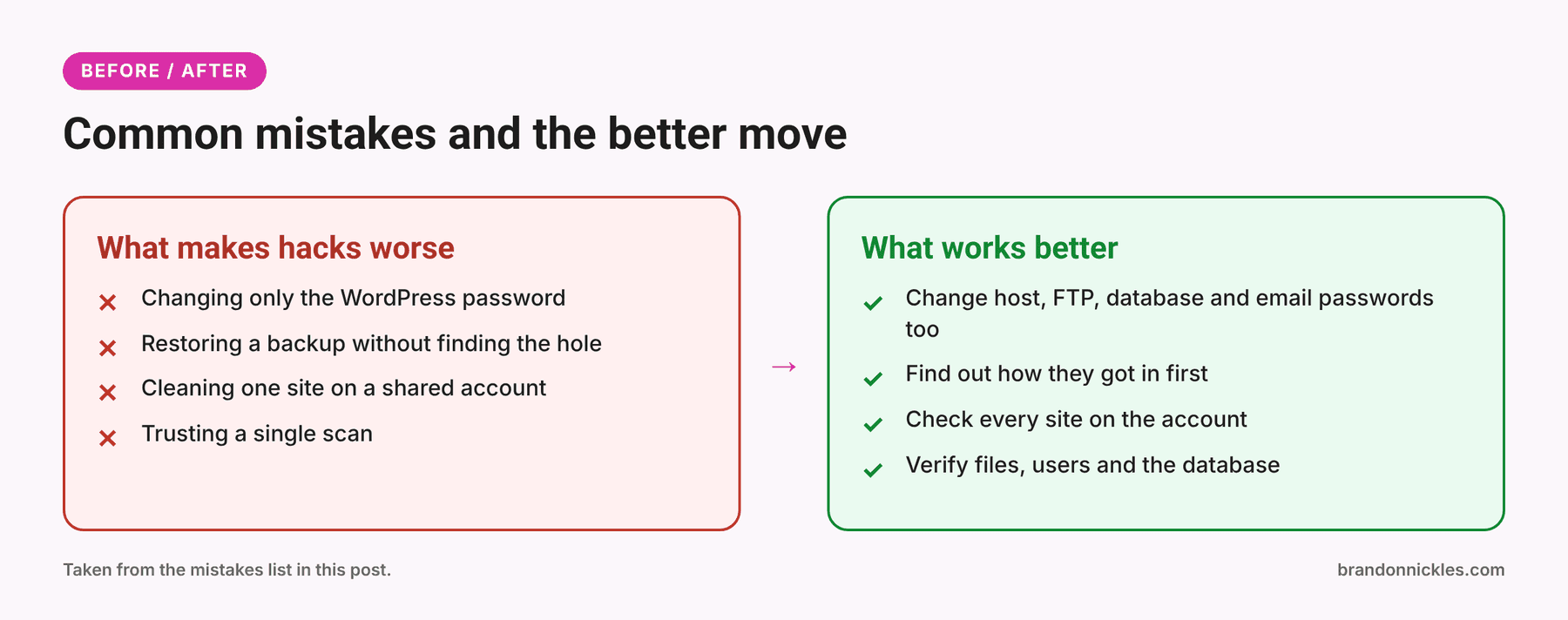
- Only changing the WordPress admin password. The hosting, FTP, and database credentials may be compromised too.
- Restoring a backup without fixing the original hole. You'll get hacked again, sometimes quickly.
- Cleaning one site on a hosting account with several. If the other sites share the same account and one is infected, they may reinfect each other.
- Trusting a single scan. Scanners miss things, and they can also flag harmless files.
- Skipping the "how did they get in?" question.
- Leaving the old, vulnerable plugin installed "because it's deactivated." Deactivated plugin files can still be reached on the server.
Want me to handle the cleanup?
If you'd rather not do forensics on your own business at 11 p.m., I'm happy to take it off your plate. I clean the infection, restore from a clean backup where possible, find how they got in, and harden the site. I back up the current state before touching anything, and you get a clear quote first.
Now, let's make sure you never have to read this section again.
Why sites get hacked (it's usually boring)
Nobody in a hoodie is targeting your small business site by name. Most attacks are automated bots scanning the internet for known weaknesses, trying common passwords, and probing plugins with known holes. The usual doors:
- Outdated plugins, themes, or WordPress core with known vulnerabilities. This is one of the most common causes.
- Weak or reused passwords, especially on admin accounts. If your password appeared in some other company's data breach, bots will try it on your site.
- Nulled (pirated) plugins and themes, which can ship with built-in malware.
- Abandoned plugins that no longer get updates.
- Poor hosting security, or shared accounts where one infected site spreads to the others.
- Too many admin users, or old accounts for freelancers and employees who left years ago.
Nothing on that list is exotic. Which is the good news: it's all preventable.
How to make sure it doesn't happen again
Here's the prevention list I'd give any site owner. You don't need to do everything today, but work through it.
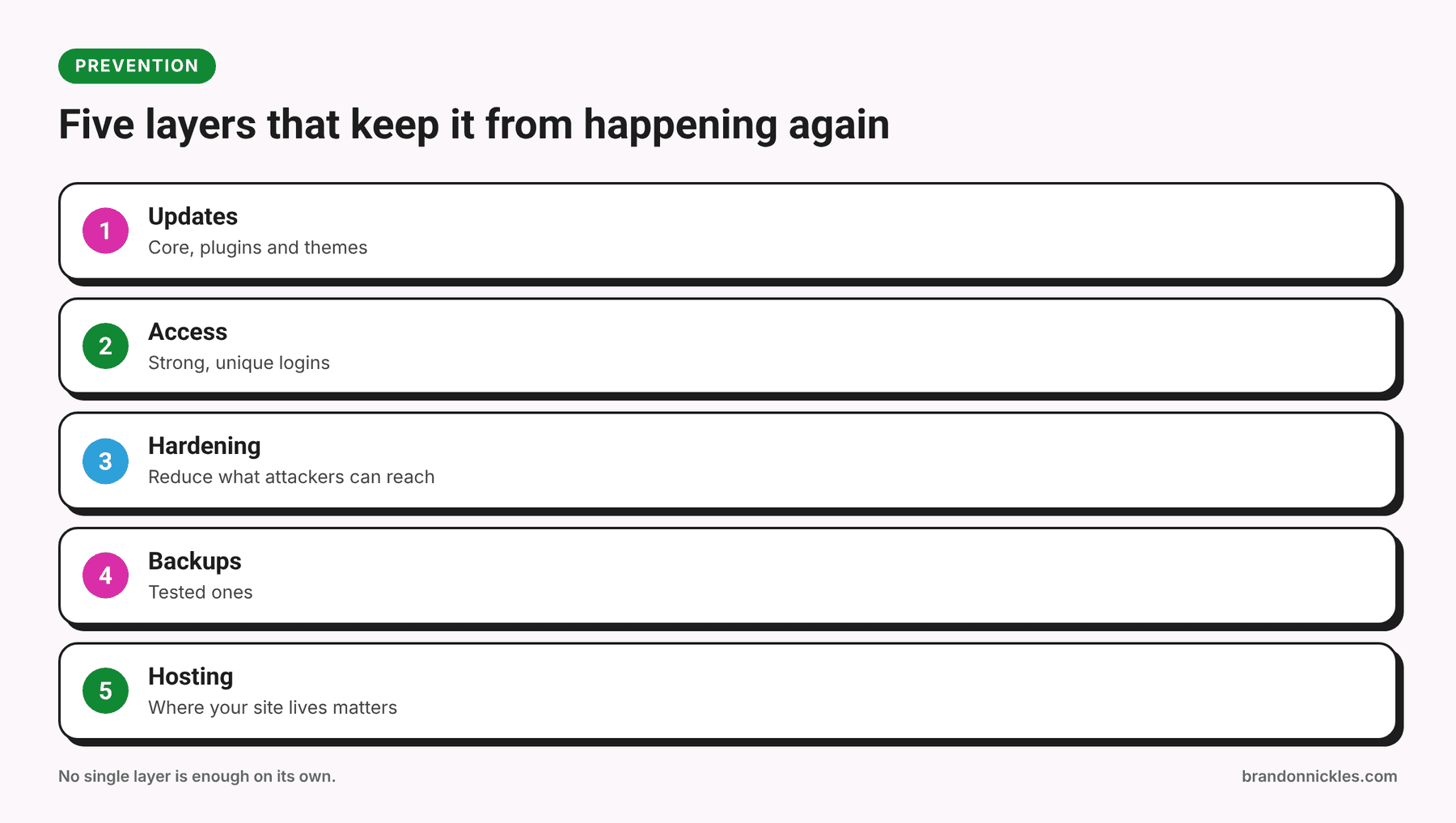
Updates
- Keep WordPress core, plugins, and themes updated. For important sites, test updates on a staging copy first.
- Delete plugins and themes you don't use. Deactivated is not the same as deleted.
- Replace plugins that haven't been updated in a long time, or whose developer has gone quiet.
- Before installing any new plugin, check when it was last updated, how widely it's used, and whether it's actually maintained.
Access
- Use strong, unique passwords, ideally from a password manager.
- Turn on two-factor authentication (2FA) for every admin account. Of everything on this list, this is one of the highest-value, lowest-effort steps.
- Give people the lowest user role they need. Most people don't need Administrator.
- Limit login attempts and remove users who no longer need access.
- Use SFTP, not plain FTP.
- Don't use "admin" as a username.
Hardening
- Add this to
wp-config.phpto disable the theme and plugin code editor in the dashboard:
define( 'DISALLOW_FILE_EDIT', true );
- Keep
wp-config.phpsecured and never publicly accessible. - Use a reputable security or file-integrity plugin that alerts you when files change, so you hear about it before Google does.
- Consider a web application firewall (WAF), either from your host or a service in front of your site.
Backups
- Back up the files and the database, on a regular schedule.
- Store backups off the server. A backup that lives on the same hacked server can be infected or deleted too.
- Keep multiple restore points, not just the most recent one.
- Actually test a restore. A backup you've never restored is a hope, not a plan.
Hosting
- Choose a host that actively monitors for malware and keeps server software current.
- Don't put every site you own on one account if you can avoid it.
The prevention checklist
- WordPress core, plugins, and themes are up to date
- Unused plugins and themes deleted
- No nulled or pirated plugins or themes
- 2FA on every admin account
- Unique passwords in a password manager
- Admin list reviewed in the last few months
- File editing disabled in the dashboard
- File-integrity or malware scanning in place
- Off-site backups with at least one test restore
- A plan for who to call when something goes wrong
How this works with managed hosting
If your site is on my managed WordPress hosting, most of that prevention list is handled for you: core updates, plugin management, malware scanning, uptime monitoring, backups, and emergency restoring if something does go wrong. I can't promise that nothing will ever happen to a website, because nobody honestly can. But I can tell you that someone is watching it and knows what to do if it does.
Frequently asked questions
Should I just delete the site and start over?
Usually not necessary. A new site can be re-infected the same way if the cause isn't found, and you'd lose content and search history. A proper cleanup and hardening is usually the better path, though a rebuild is sometimes worth it on a very old, neglected site.
Will a security plugin protect me from everything?
No. It's a layer, not a force field. Updates, strong access controls, backups, and good hosting do more of the work than any one plugin.
Is it my host's fault?
Sometimes the server is the weak point, but most hacked WordPress sites are compromised through plugins, themes, or passwords. Your host can help with logs and backups either way.
Will my Google rankings recover?
Often they can once the site is clean and any warnings are resolved, but I can't promise timing. How long it takes depends on what the hack did and how long it was live.
How do I know the cleanup actually worked?
You verify it: file checks against official copies, no unknown users, no suspicious files or scheduled tasks, clean scan results, no redirects when you test from different devices and referrers, and no new problems in the days after.
Think your site is hacked right now?
Don't wait. Every day it stays infected can cost you visitors, search visibility, and trust.
Email Brandon@brandonnickles.com. I reply the same day, I'll tell you plainly what's going on, and you get a clear quote before any work begins.
And if you'd like fewer 11 p.m. surprises, take a look at managed WordPress hosting.