
The White Screen of Death and 4 Other WordPress Errors You Can Fix Yourself (and When to Call a Pro)
Five common WordPress errors, what usually causes each one, and the exact steps to try before you pick up the phone. Plus a clear line for when to stop and get help.
You load your website and get a blank white page. Not an error message. Not a helpful hint. Just a big, empty, judgmental rectangle.
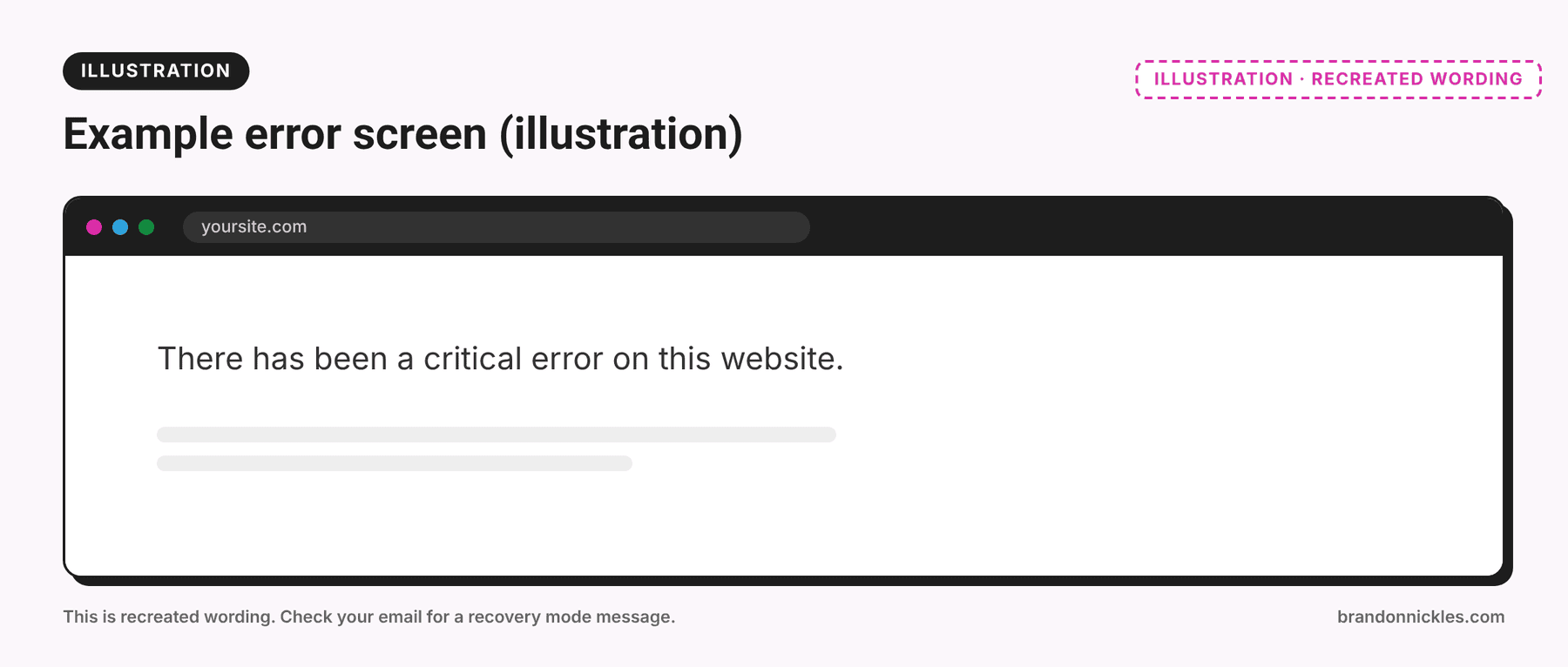
Or maybe it's the slightly more polite version: "There has been a critical error on this website." Or a database error. Or a 500. Or a site stuck on "Briefly unavailable for scheduled maintenance" for two days (which, I'd argue, is not "briefly").
It's scary, but here's the thing: most WordPress errors have a short list of usual suspects. Once you know the list, you can often get the site back in under an hour without calling anyone. And when you can't, you'll at least know enough to describe the problem to the person who can.
Here are five of the most common errors, what usually causes them, and the fixes you can try yourself.
Before you touch anything
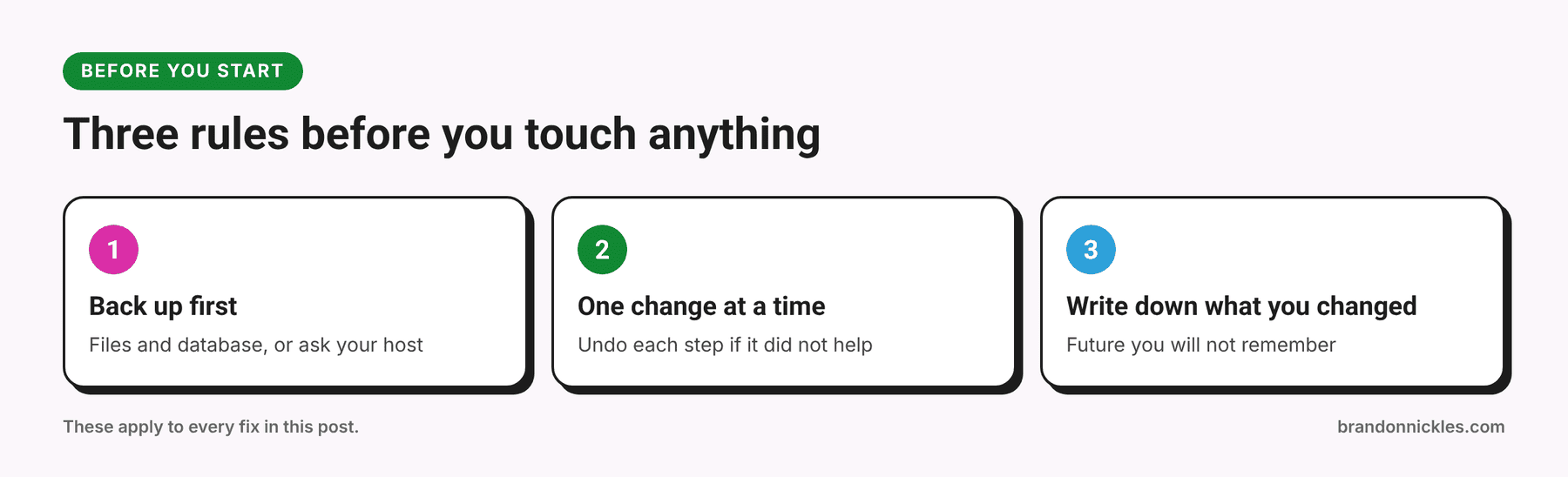
Three rules that apply to every fix below:
- Back up first. Download your files and database, or ask your host for a recent backup. If your dashboard is down, your host can usually provide one, and your hosting control panel may have its own backup tool.
- Change one thing at a time. If you change five things and the site comes back, you won't know which one fixed it, and you won't know what to prevent next time. Undo each step if it doesn't help.
- Write down what you changed. Future you, at 11 p.m., will not remember. Future you will be annoyed.
You'll also need access to your files, through SFTP/FTP or your host's File Manager. That's the "back door" that still works when your dashboard doesn't. Your host's support page can tell you how to log in. Your site's files live in a folder often called public_html, www, or named after your domain, and you'll know you're in the right place when you see folders called wp-admin, wp-content, and wp-includes.
A warning about editing wp-config.php: this file controls how your site connects to its database. One misplaced character can take the site down. Download a copy before you edit it, use a plain text editor (not a word processor), and keep the file's existing formatting.
1. The White Screen of Death (and the "critical error" message)
What you see: A blank white page, or "There has been a critical error on this website."
What's usually going on: A PHP fatal error. WordPress ran into something it couldn't handle and stopped. The most common causes are a plugin or theme conflict, a bad update, or the site running out of memory. Sometimes it's a PHP version mismatch, where a plugin was written for an older version than the one your server now uses.
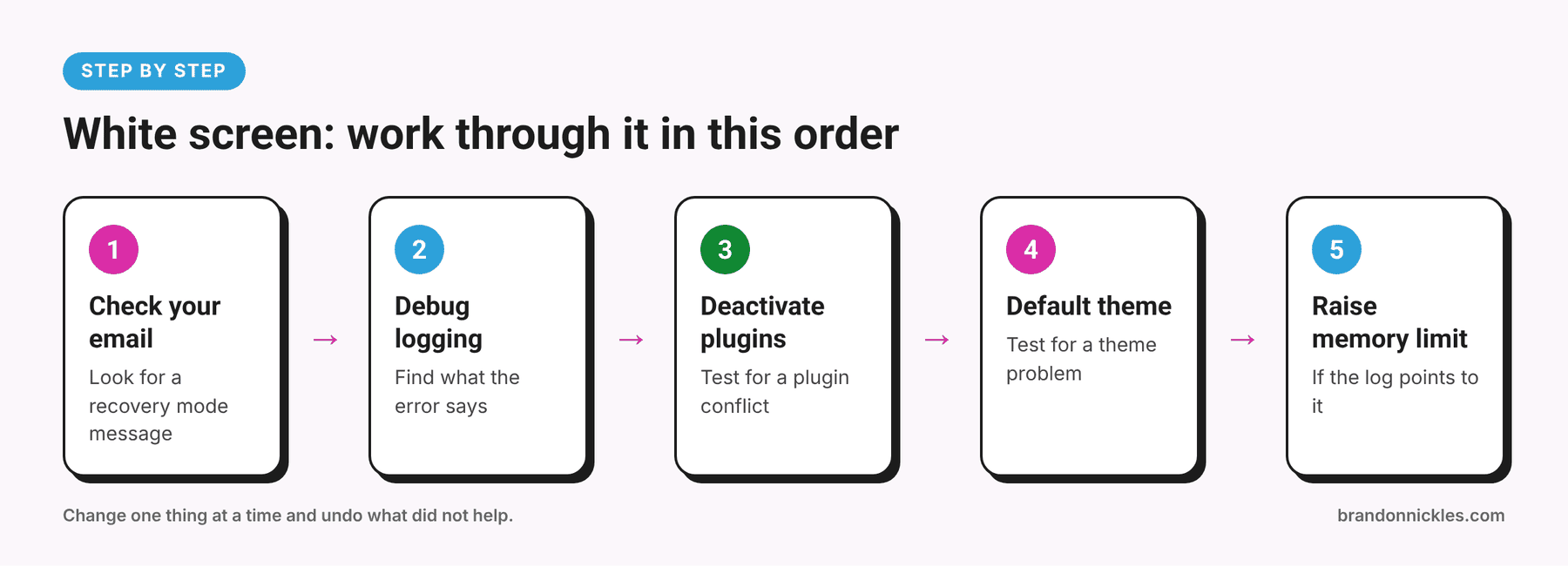
Step 1: Check your email
Since WordPress 5.2, a fatal error often triggers an email to the site's admin address with a link to enter recovery mode, where you can deactivate the offending plugin or theme. Check spam, too. If the email shows up, this might be a five-minute fix.
Step 2: Turn on debug logging
Edit wp-config.php in your site's root folder and add this above the line that says "That's all, stop editing!":
define( 'WP_DEBUG', true );
define( 'WP_DEBUG_LOG', true );
define( 'WP_DEBUG_DISPLAY', false );
Reload the site, then open wp-content/debug.log. The error usually names the file where things went wrong, and the file's path tells you which plugin or theme caused it. For example, a path containing wp-content/plugins/some-plugin/ points you at some-plugin.
When you're done, set WP_DEBUG back to false or remove those lines. Don't leave debugging on a live site, and delete the log file afterward since it can contain details you'd rather not leave lying around.
Step 3: Deactivate all plugins
Using FTP or File Manager, go to wp-content/ and rename the plugins folder to plugins-off. WordPress can't find the plugins, so it deactivates them. If the site comes back, you know a plugin is the cause.
Now rename the folder back to plugins. All your plugins will show as deactivated in the dashboard. Reactivate them one at a time, checking the site after each one, until the problem returns. That's your culprit. If you already know which plugin the debug log pointed to, you can skip ahead and rename just that plugin's folder inside wp-content/plugins/.
Step 4: Switch to a default theme
In wp-content/themes/, rename your active theme's folder. WordPress will fall back to a default theme (one of the "Twenty Twenty-" themes), if one is installed. If the site loads, the theme was the problem.
Step 5: Raise the memory limit
If the log mentions "Allowed memory size exhausted," try adding this to wp-config.php:
define( 'WP_MEMORY_LIMIT', '256M' );
Your host may cap memory regardless of what you set, so ask them if it doesn't help.
Also check
- Whether your PHP version recently changed (host updates, your own changes). An older plugin on a newer PHP version is a common cause.
- Whether you just updated something. If so, undo that update first.
- Whether a plugin or theme update was interrupted halfway.
Common mistake: Assuming the most recent change is the only possible cause. It's often the cause, but not always. An old plugin can break after a server-side PHP upgrade you didn't even know about.
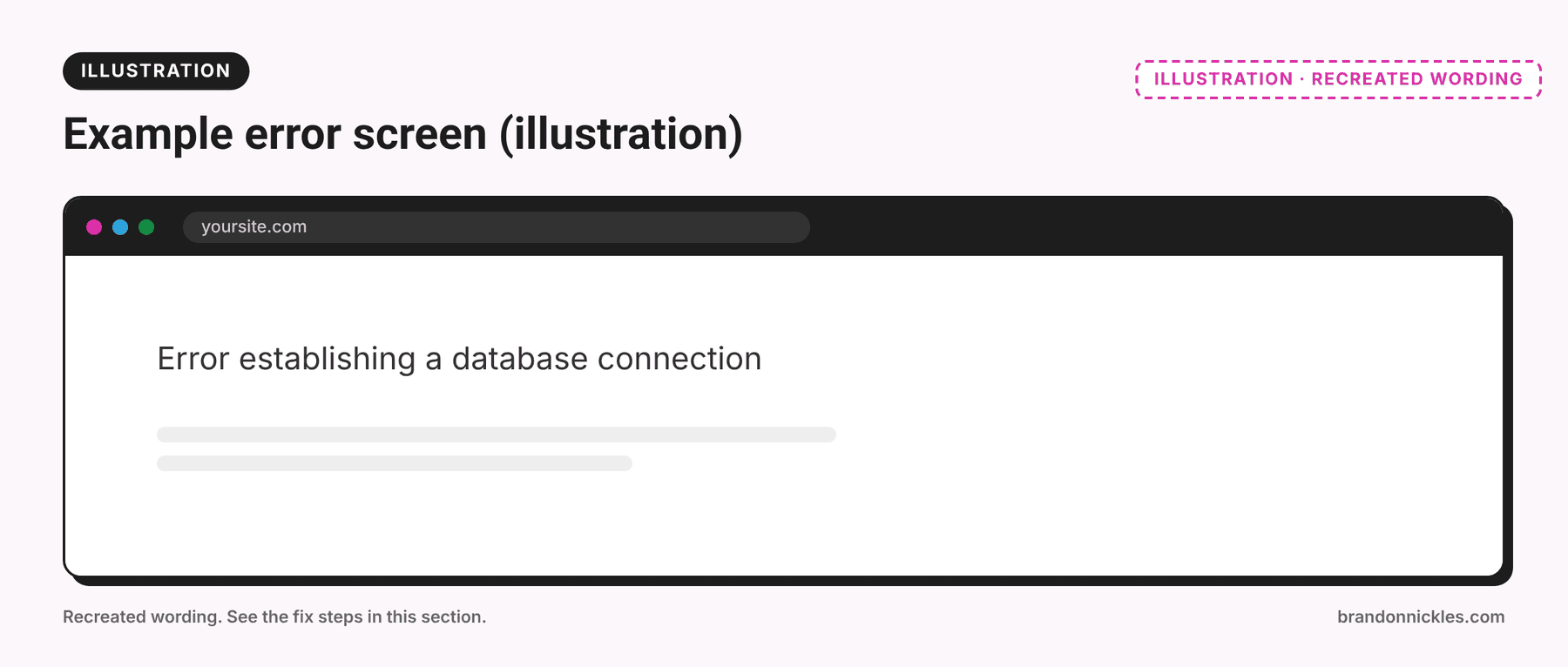
2. Error establishing a database connection
What you see: "Error establishing a database connection" on the front end, and often the dashboard too.
What's usually going on: WordPress can't talk to its database. Either the credentials in wp-config.php are wrong, the database server is down or overloaded, or the database is damaged.
Try this
- Check your host's status page or ask their support. If the database server is down, you can only wait (or ask them to fix it).
- Check the credentials in
wp-config.php. Look atDB_NAME,DB_USER,DB_PASSWORD, andDB_HOST. They must match what's set up in your hosting control panel. A recent password change, migration, or host move is a common cause. - Check
DB_HOST. On many hosts it'slocalhost, but some use a different host name. Your host's documentation will tell you. - Try repairing the database. Add this line to
wp-config.php:
define( 'WP_ALLOW_REPAIR', true );
Then visit yoursite.com/wp-admin/maint/repair.php and run the repair. Remove that line when you're done. The repair page doesn't require a login while the setting is on, so you don't want it left open.
- Check whether the database has been deleted or the user's permissions removed. This can happen after a host change or an account cleanup.
When it's not you: If the credentials are correct and the host confirms the server is fine, the database may be corrupt or the account may have hit resource limits. That's a good time to ask your host for help or get a developer involved.
3. The 500 Internal Server Error
What you see: "500 Internal Server Error," often with very little other information.
What's usually going on: It's a generic "something went wrong on the server" message, which is about as useful as "the car is making a noise." The common causes are a corrupted .htaccess file, a plugin or theme problem, or a PHP memory limit.
Try this
- Reset
.htaccess. In your site's root folder, rename.htaccessto.htaccess-old. (It starts with a dot, so you may need to turn on "show hidden files" in your FTP program or File Manager.) If the site comes back, log in and go to Settings → Permalinks and click Save Changes. WordPress generates a fresh.htaccess. - Rule out plugins and themes with the same rename steps from error #1.
- Check your host's error log, usually in the control panel. It often names the exact line or setting that failed, which turns a vague error into a specific one.
- Try the memory limit change from error #1.
- Ask your host whether a server setting changed recently.
Common mistake: Replacing the .htaccess file with a "generic" one copied from a random website. Different setups use different rules. Let WordPress generate its own, and if you have custom rules (redirects, security rules), copy those back from your .htaccess-old file afterward.
4. Stuck in "Briefly unavailable for scheduled maintenance"
What you see: "Briefly unavailable for scheduled maintenance. Check back in a minute." And it doesn't go away.
What's usually going on: WordPress puts the site in maintenance mode while it runs updates by creating a temporary file. If an update gets interrupted (a closed browser tab, a timeout, a server hiccup), the file stays behind, and WordPress keeps showing the message.
Try this
- Using FTP or File Manager, look in your site's root folder for a file called
.maintenance. (Again, it starts with a dot, so turn on hidden files.) - Delete it. The site should come back right away.
- Go back and check the interrupted update. Some updates may have only partly installed. Re-run the update, or reinstall the plugin or theme if it's acting strangely.
- Clear your cache, if you use caching, so you're not looking at an old copy of the maintenance page.
To avoid it next time: don't close the tab in the middle of an update, don't run huge batches of updates at once on a slow host, and keep a recent backup before updating anything important.
5. "Too many redirects" (ERR_TOO_MANY_REDIRECTS)
What you see: Your browser says the site redirected you too many times, or that the page isn't working because of a redirect loop.
What's usually going on: Your site is sending visitors in a circle. Common causes are mismatched site URLs (http vs. https, or www vs. non-www), conflicting SSL or redirect settings, a caching or CDN setting, or redirect rules in .htaccess that fight each other.
Try this
- Clear your browser cookies and cache for the site, or try a private window or a different browser. Sometimes it's just your browser.
- Check your site URLs. In Settings → General, make sure WordPress Address and Site Address match and use the version of your URL you actually want (usually
https). If you can't log in, you can set them temporarily inwp-config.php:
define( 'WP_HOME', 'https://yoursite.com' );
define( 'WP_SITEURL', 'https://yoursite.com' );
Replace yoursite.com with your real domain, and remove these lines once things are working if you don't want them hard-coded.
- Temporarily disable caching, SSL, and redirect plugins using the plugin folder rename trick above.
- Check Cloudflare or any other CDN if you use one. An "SSL mode" that doesn't match your server's setup is a classic cause of loops.
- Check
.htaccessfor duplicate or conflicting redirect rules, and reset it as in error #3. - Look at your host's redirect settings. Some hosts have their own "force HTTPS" or "redirect www" settings that can collide with a plugin doing the same thing.
Common mistake: Layering redirects from three places at once: a plugin, .htaccess, and the host. Pick one place to handle each redirect.
Bonus: two quick ones
Not worth a full section, but they come up constantly:
- Posts and pages show a 404 after a migration or settings change. Go to Settings → Permalinks and click Save Changes, without changing anything. That refreshes WordPress's rewrite rules, and it fixes the problem more often than it has any right to.
- "Updating failed" or "The response is not a valid JSON response" in the editor. Common causes include mismatched site URLs (see error #5), a security plugin or firewall blocking the editor's requests, permalink problems, or a caching layer. Re-saving permalinks and temporarily disabling security and caching plugins are the usual first checks.
Need it fixed now?
If you're reading this with a dead website, I'll take it from here. Site down, white screen, 500 errors, a plugin update that broke everything: that's what I do. I'll find the root cause, get you back online, and tell you plainly if the fix is simple.
When to stop and call a pro
Fixing your own site is great until it isn't. Get help if:
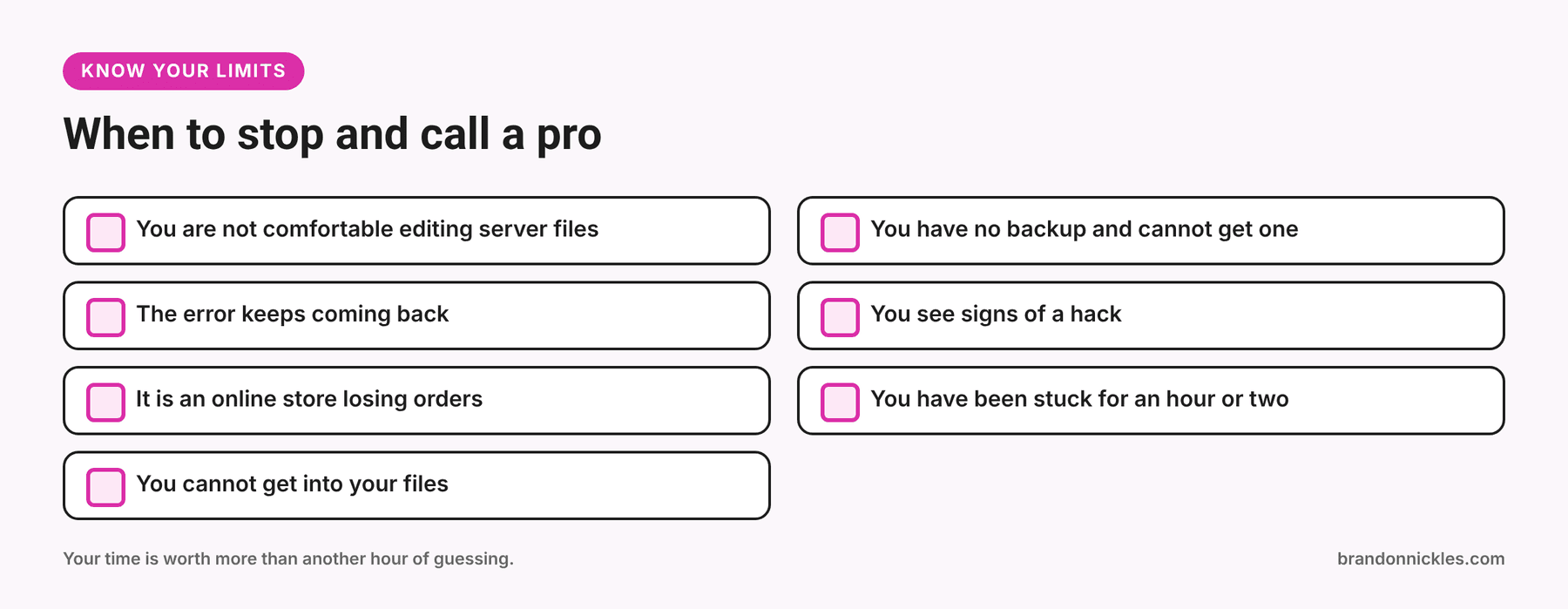
- You're not comfortable editing files on the server. One typo in
wp-config.phpcan take the site down. - You don't have a backup, and you can't get one.
- The error comes back after you fix it. That means you treated a symptom, not the cause.
You see signs of a hack, like spam pages, unknown admin users, or unfamiliar files. Stop and read what to do when a WordPress site gets hacked.
- It's an online store, and every hour down costs you orders.
- You've spent more than an hour or two and you're still stuck. Your time is worth more than that.
- You can't even get into your files. If you don't have FTP, File Manager, or hosting access, that's the first thing to sort out.
What to tell your developer or host (so they can help faster)
Whoever you contact, give them this and you'll shave time off the whole process:
- The exact error message, or a screenshot
- What you changed or updated right before it happened
- Whether you can log in to the dashboard
- When it started
- Anything you've already tried, and whether you undid it
- Whether you have a backup, and how recent it is
The "oh no" checklist
- Backed up what I can before changing anything
- Checked my email for a WordPress recovery mode message
- Turned on debug logging (and wrote down to turn it off)
- Renamed the plugins folder to test for plugin conflicts
- Renamed the active theme to test for a theme problem
- Checked the host's error log
- Reset
.htaccessif I saw a 500 error - Looked for a
.maintenancefile if the site said "scheduled maintenance" - Verified site URLs if I saw a redirect loop
- Turned debugging and repair settings back off
Frequently asked questions
Will I lose my content if I rename the plugins folder?
No. Renaming a folder doesn't delete anything. The plugins just show as deactivated until you rename the folder back and reactivate them. Plugin settings are usually stored in the database and survive, though it's a good habit to back up first.
Can I just reinstall WordPress?
Reinstalling core files can fix problems caused by damaged core files, and doing it through the dashboard's update/reinstall option keeps your content. But it won't fix a bad plugin, a theme problem, or a database issue, so diagnose first.
Why did my site break right after an update?
Because updates change code, and sometimes the new code doesn't get along with another plugin, your theme, or your PHP version. That's why backups before updates matter.
Is it safe to leave WP_DEBUG on?
Not on a live site. Showing errors to visitors can expose information, and logs can grow. Turn debugging on while you troubleshoot and turn it off afterward.
How do I know it's not a hack?
Look for signs: unknown admin users, files you didn't add, spam content, redirects to other sites, or warnings from Google or your host. A plain white screen after an update is usually a code problem, not a hack. If you're unsure, ask someone to check.
Want someone to just fix it?
Site down, white screen, 500 errors, a plugin update that broke everything: tell me what you're seeing. I back up your site before I touch it, I reply the same day, and you get a clear quote before work begins.
Email Brandon@brandonnickles.com.
Are you an agency? I also work as a white-label WordPress developer, handling emergency fixes for your clients under your name.