
Why Your WordPress Site Got Slow (and the 5 Fixes That Actually Matter)
Your site didn't get slow overnight, and it usually isn't one big thing. Here's where the speed goes, how to find the real culprit, and the five fixes worth your time before you buy yet another "speed booster" plugin.
Think back to the day your site launched. It loaded fast, you were proud of it, and nobody complained.
Fast forward to now. It takes ages to load on your phone, the contact page hesitates like it's thinking about its life choices, and you've started to wonder how many people hit the back button before your page finishes loading.
Here's the good news: a slow WordPress site is almost never a mystery. It's usually the same handful of problems stacking up over time, like dishes in a sink. Nobody decided to make the site slow. It just happened one plugin, one giant photo, and one "quick" chat widget at a time.
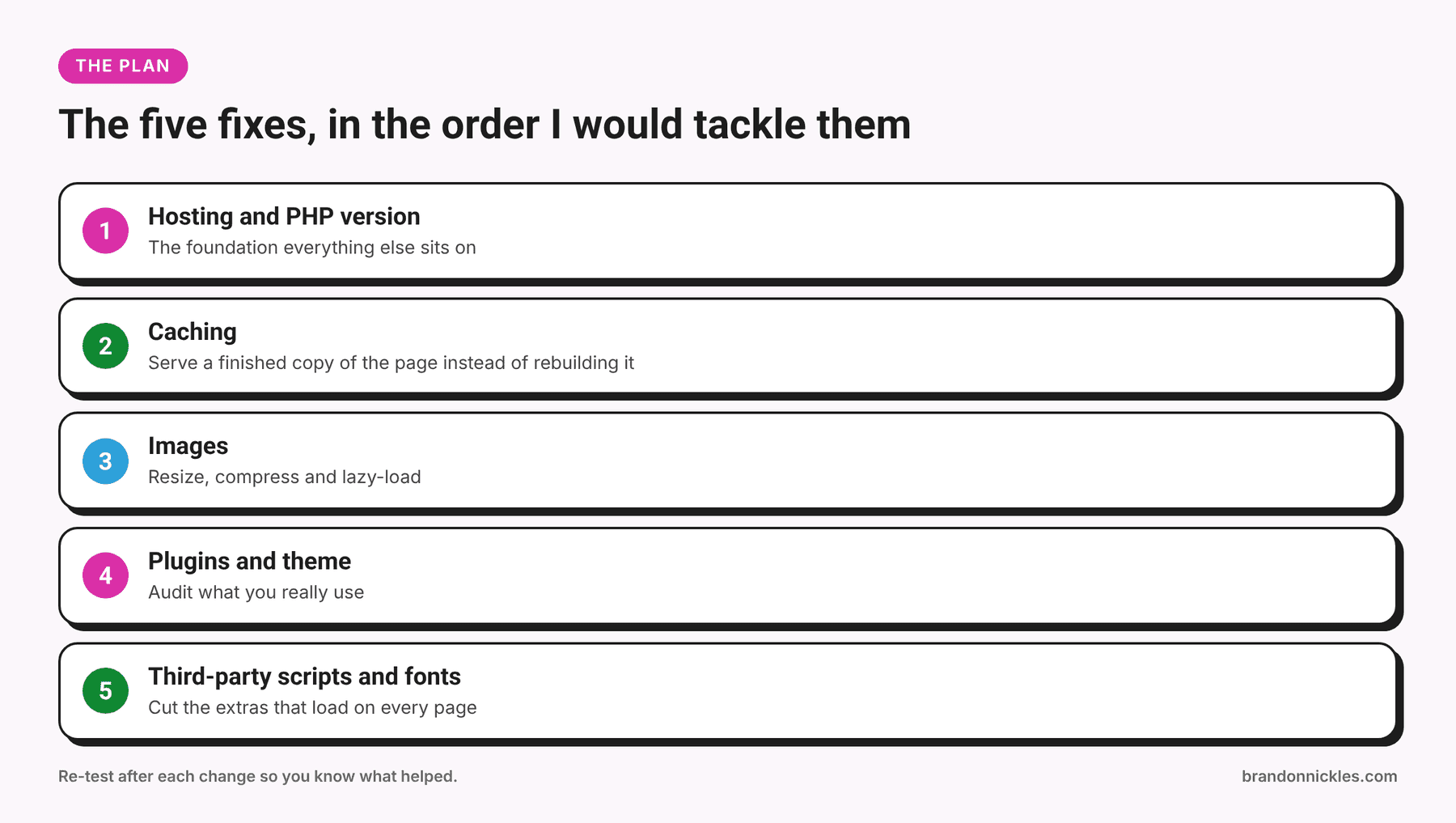
I've spent a lot of years inside WordPress sites, and the pattern is pretty consistent. Below are the five fixes that matter most, in roughly the order I'd tackle them. I'm skipping the tiny tweaks that make a testing tool happy but don't change what your visitors actually experience.
Why speed is worth caring about (without the scare tactics)
I'm not going to throw made-up numbers at you. Here's the plain version:
- Visitors are impatient. Most people won't wait around for a page that stalls, especially on a phone with a so-so connection.
- Google pays attention to experience. Google has said that page experience, including how fast and stable a page feels, is something it looks at. It won't rescue a bad site with good speed, but a slow, jumpy site isn't doing your search visibility any favors.
- Slow pages make ads more expensive in practice. If you're paying for clicks and sending them to a slow page, you're paying for visitors who leave before they see anything.
- It feels unprofessional. A site that stutters makes a business feel less reliable, fairly or not.
So yes, it matters. Now let's find out what's actually wrong.
First, measure before you touch anything
Run your most important pages through PageSpeed Insights, and also load them on your own phone using mobile data, not office Wi-Fi.
A few ground rules:
- Test more than the homepage. Your service pages, contact page, and your top blog post are where visitors actually land. Often the homepage is fine and a page with a giant slider is the problem.
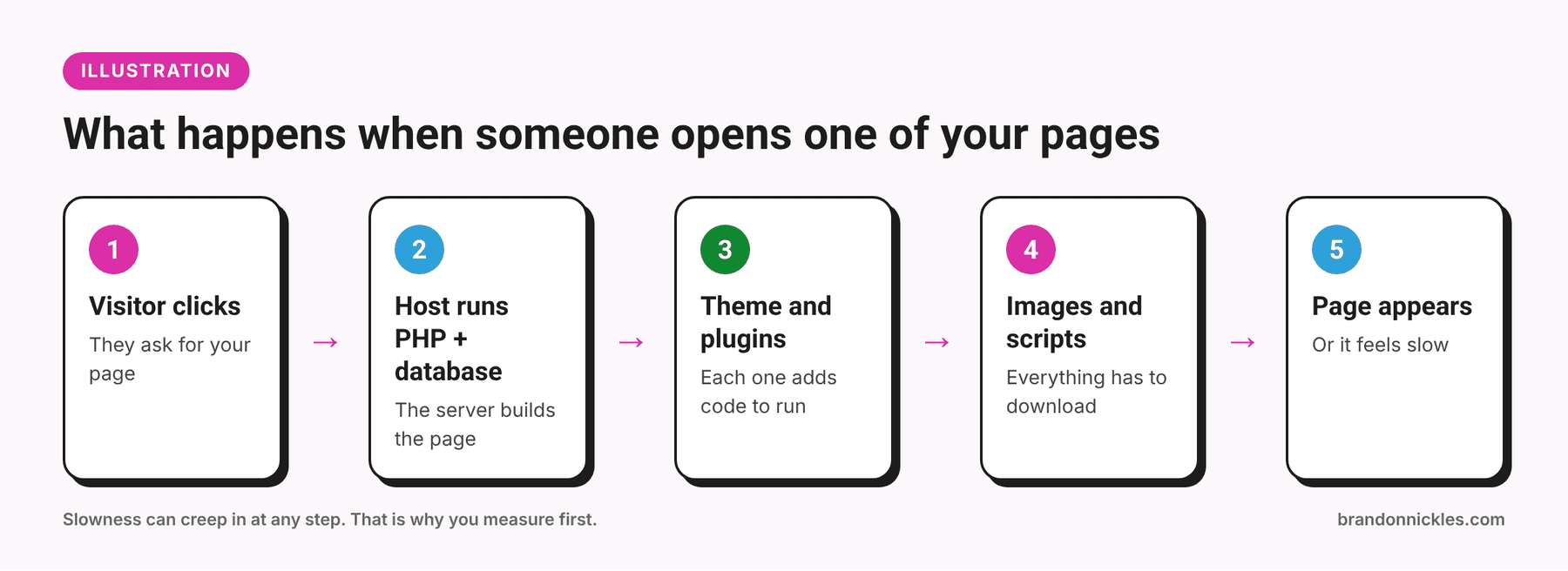
- Learn three terms. PageSpeed Insights reports "Core Web Vitals." In plain English: LCP is how long the biggest thing on screen takes to appear, INP is how quickly the page responds when someone taps or clicks, and CLS is how much the layout jumps around while loading. If you've ever gone to tap a button and the page shifted so you hit an ad instead, that's CLS.
- Don't chase a perfect score. A score is a diagnostic, not a trophy. Read the "Opportunities" and "Diagnostics" sections and fix what it flags on your pages.
- Test a few times. Scores bounce around a bit from run to run. Look for patterns, not a single number.
- Write down where you start. If you can't compare before and after, you'll never know what helped. Screenshots count.
Now, the five fixes.
1. Check your hosting and PHP version
Everything else on this list sits on top of your hosting. If the server is overcrowded, underpowered, or running old software, no plugin will save you. It's like putting a spoiler on a car with a bad engine.
Check your PHP version
PHP is the programming language WordPress runs on, and newer supported versions are generally faster and safer than old ones.
- In your dashboard, go to Tools → Site Health → Info → Server.
- Look at the PHP version listed.
Compare it to the versions that are currently supported at php.net/supported-versions.
- If you're on an unsupported version, ask your host how to change it (usually a setting in the hosting control panel).
Before you switch: do it on a staging copy first, or at minimum take a full backup. Older plugins and themes can break on a newer PHP version, and it's much better to find that out on a copy of your site than on the live one.
Notice how your server responds
If even a simple page takes a long time to start loading, before images and styling show up, the server is often part of the problem. PageSpeed Insights will usually flag this as a slow server response time.
Common hosting-related causes:
- Your site shares a crowded server with lots of other sites
- The plan has tight resource limits and your site keeps hitting them
- The server is far from most of your visitors
- No server-level caching
That's a hosting conversation, not a plugin conversation. Cheap shared hosting can be fine for a hobby site, but for a business that depends on its website, it's the first place I'd look when "everything" is slow. I wrote a separate breakdown on shared vs. managed hosting if you want the full picture.
Common mistake: Paying for a "speed optimization" plugin to fix a hosting problem. The plugin can help at the edges, but it can't make an overloaded server less overloaded.
2. Turn on caching (the right way)
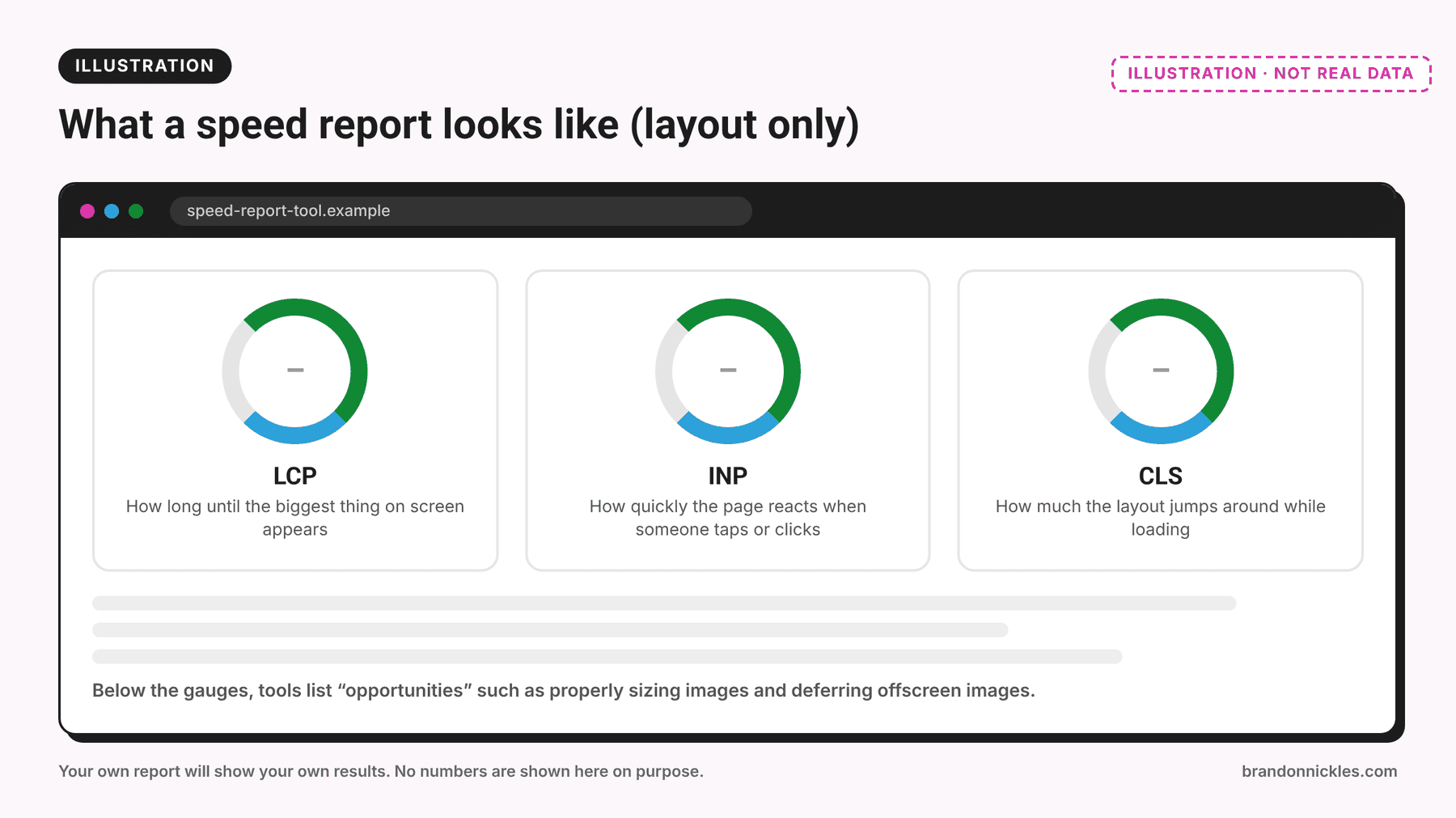
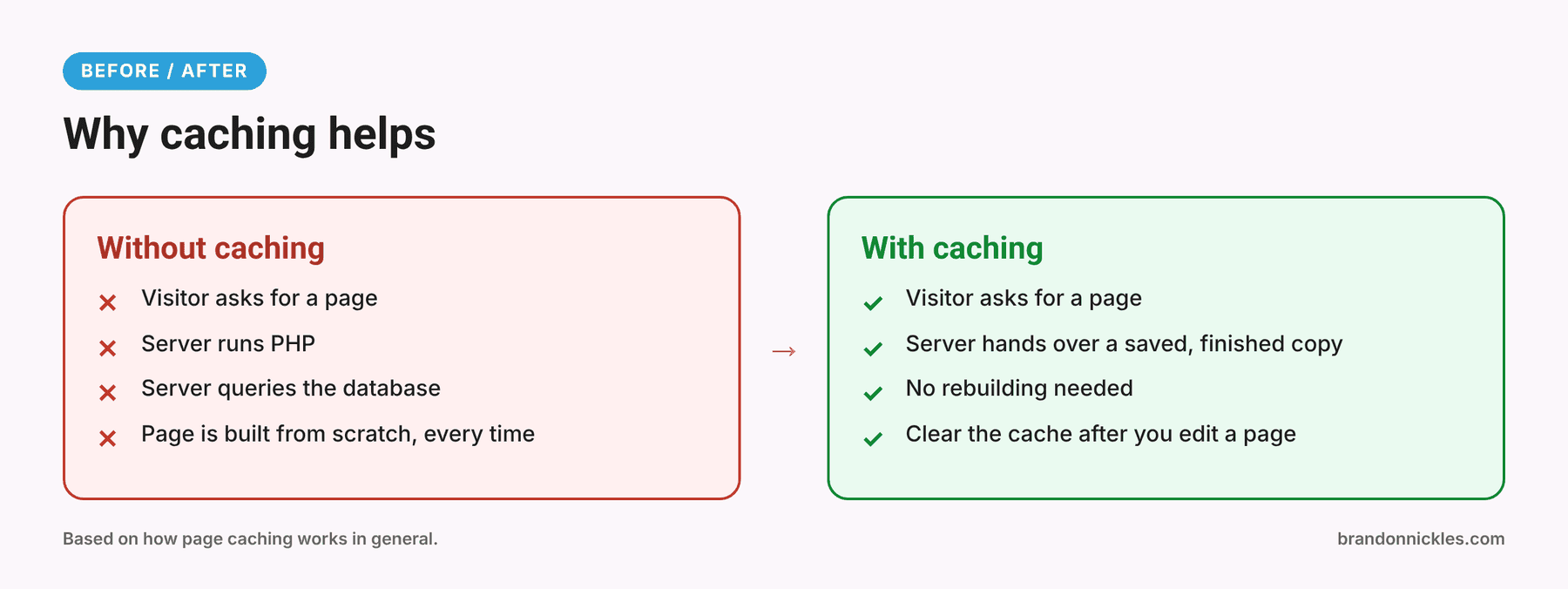
Every time someone visits an uncached WordPress page, the server runs PHP and queries the database to build that page from scratch. Imagine a restaurant that grows the vegetables after you order. Caching is the kitchen that prepped ahead. It saves a finished copy of the page and serves that instead, which is one of the biggest wins available.
How to set up caching without making a mess
- Ask your host first. Many hosts include server-level caching. If yours does, you may not need a caching plugin at all.
- If not, pick one caching plugin. One. Not three. Two caching plugins fighting each other is a classic way to make a site slower and weirder.
- Turn on the basics: page caching, browser caching, and file minification only if it doesn't break the layout.
- Exclude what shouldn't be cached. Cart, checkout, and account pages on a WooCommerce site must be excluded, or customers can see the wrong content.
- Test the site afterward. Check forms, menus, sliders, and checkout. Aggressive "combine and minify" options are famous for breaking things.
Caching pitfalls
- "I edited the page but I still see the old version." That's caching doing its job. Clear the cache after making changes, and check in a private browser window.
- Logged-in you vs. visitor you. Many setups don't cache pages for logged-in users, so your site may feel fast to visitors and slow to you, or the other way around. Test while logged out.
- A caching plugin on top of host caching. Sometimes the host already does the job and the plugin just adds conflicts.
If your host offers object caching (such as Redis or Memcached), it's worth asking about for busier or database-heavy sites like WooCommerce stores and membership sites.
3. Fix your images
Images are the most common reason a good-looking site is slow. A photo straight off a phone or camera can be many times larger than the space it's displayed in, and the browser still has to download all of it before squeezing it down.
The image cleanup routine
- Resize to the size you actually display. If an image shows at 800 pixels wide, it doesn't need to be uploaded at several thousand. Before uploading, resize it in any image editor.
- Compress it. An image optimization plugin or an online compression tool can shrink file sizes with little visible difference.
- Use modern formats such as WebP where possible. Current versions of WordPress support them, and many optimization plugins can convert for you.
- Lazy-load below-the-fold images. WordPress does this by default for most images now, which means images lower on the page only load as someone scrolls.
- Don't lazy-load the big hero image at the top. Delaying the first thing people see makes the page feel slower, not faster. Most modern setups handle this correctly, but caching and optimization plugins sometimes override it.
- Check your logo and header images. A giant logo file loaded on every page is a quiet offender.
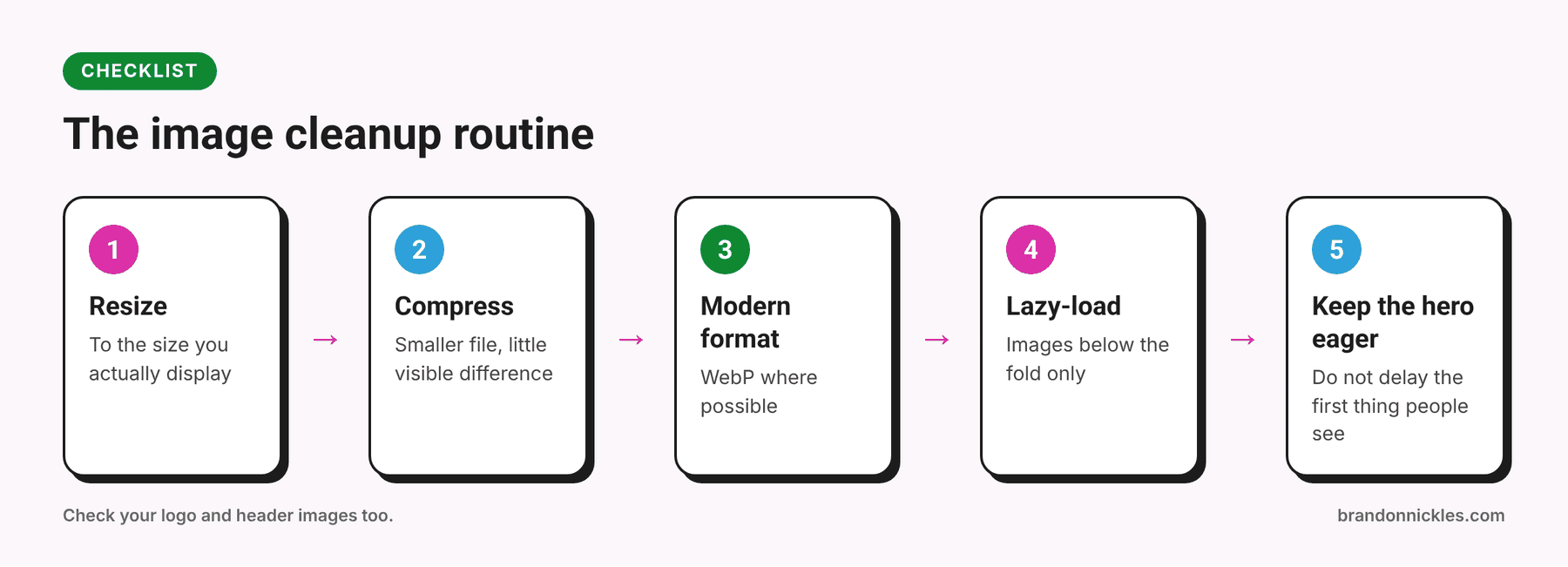
Image mistakes I see a lot
- Uploading the original camera file because "it looks better"
- Using a huge image as a background and hiding it on mobile with CSS (it may still download)
- Video backgrounds on the homepage. They look great in the design meeting and cost you on every page load. If you must use video, keep it short, compressed, and consider a still image on mobile.
- Image sliders carrying a dozen full-size photos nobody scrolls to
Quick test: In PageSpeed Insights, look for items like "Properly size images," "Serve images in next-gen formats," and "Defer offscreen images." Those are the recommendations to take seriously.
Want me to look at it for you?
If you'd rather not play detective, that's what I'm here for. I'll look at what's actually slowing your site down, tell you plainly what's worth fixing and what isn't, and back up your site before I touch anything.
Okay, back to the list.
4. Audit your plugins and theme
Plugins aren't evil, but every one adds code. Over the years a site collects plugins like a junk drawer: the one you tried and forgot, the one that does what another plugin already does, the one the previous developer installed and nobody remembers why.
The plugin audit
- List every active plugin and write down what it does. If you can't say what it does, that's a red flag.
- Delete anything unused. Deactivated plugins still sit on your server, can still be exploited if they have a vulnerability, and clutter your update screen.
- Look for overlap. Two SEO plugins, two form plugins, two security plugins: pick one.
- Replace "does one tiny thing" plugins with a setting you already have or a few lines of code, if you or your developer can do it safely.
- Be skeptical of heavy add-on packs, sliders, and "all-in-one" suites that load their scripts and styles on every single page even when you use them on one.
How to find the slow ones
- Query Monitor is a free plugin that shows slow database queries and which plugin or theme caused them. It's for diagnosis, so remove it when you're done.
- The staging method: on a staging copy (never your live site), deactivate plugins one at a time and re-test. When the page speeds up, you've found a suspect.
- Check what loads where. If a contact form plugin loads its scripts on your blog posts too, a tool that controls where assets load can help.
The theme question
Multipurpose themes that ship with dozens of demos and features you never use make every page carry that weight. A lightweight theme or a well-built custom setup is usually leaner. Page builders (Elementor, Divi, Oxygen, and others) vary a lot depending on how they're used. A page built with fifteen nested sections, three sliders, and animations on everything will be heavier than a simple, clean layout no matter which builder made it.
Common mistake: Deleting a plugin without checking what depends on it. Back up first, and test your forms, menus, and checkout afterward. Removing a plugin that powers a shortcode can leave ugly text where a feature used to be.
5. Cut third-party scripts and font weight
This is the one that surprises people. Your site might be reasonably lean, and then a pile of outside scripts gets added on top:
- Chat widgets
- Tracking and analytics tags (some of them duplicated)
- Social media feeds
- Review badges
- Embedded maps and videos
- Several Google Fonts in multiple weights
Every one of these is a separate request to someone else's server, and you don't control how fast they respond. Your page is only as fast as its slowest necessary piece.
What to do about it
- Make an inventory. In your browser, right-click, choose Inspect, open the Network tab, reload the page, and look at the list of requests. Anything coming from a domain that isn't yours is a third-party script.
- Remove what you don't use. An old tracking pixel from a campaign two years ago is probably still loading.
- Limit fonts. One or two font families and only the weights you need. Hosting fonts locally instead of calling Google Fonts is another option.
- Replace embedded videos with a thumbnail that only loads the video when clicked. A single embedded video can pull in a surprising amount of code.
Consolidate your tracking. Manage tags through one container, like Google Tag Manager, instead of five plugins each adding their own snippet. (I cover this in my tracking checklist.)
- Delay non-essential scripts like chat widgets until the visitor interacts. Many optimization plugins have a "delay JavaScript" option. Test it carefully, since it can break menus and forms.
A quick bonus: housekeeping in the database
Over time, WordPress databases collect post revisions, expired transients, spam comments, and leftover data from plugins you deleted long ago. Cleaning these up can help, especially on older, busier sites. But it's a maintenance task, not a miracle.
- Always take a full backup first. Database cleanups are the kind of thing you only regret once.
- Limit post revisions going forward so they don't pile up forever.
- Clear out spam and trashed items.
- Be careful with "optimize everything" buttons that delete data you didn't know you were using.
A CDN (content delivery network) is another add-on worth knowing about: it serves your images and files from locations closer to your visitors. It can help, but it's a finishing touch. Do the five fixes first.
Your speed checklist
- Tested key pages (not just the homepage) on mobile with PageSpeed Insights
- Wrote down your starting results
- PHP is on a currently supported version
- Host response time isn't the bottleneck
- One caching solution, configured and tested while logged out
- Images resized, compressed, and in modern formats; hero image not lazy-loaded
- Unused plugins deleted, overlapping plugins consolidated
- Third-party scripts and extra fonts trimmed
- Database cleaned only after a backup
- Re-tested and compared with your starting results
Frequently asked questions
Which one of these fixes should I do first?
Measure first, then check hosting and PHP, then caching, then images. In my experience those cover the biggest gaps on most small business sites. Plugins and third-party scripts come next.
Will a speed plugin fix everything?
Probably not. A speed plugin can handle caching, image compression, and script delay, which is useful. It can't fix an overloaded server, a bloated theme, or a page loaded with ten embedded widgets.
Is my PageSpeed score the only thing that matters?
No. It's a useful signal, but real visitors on real phones are what count. If the page feels fast to use and the main issues are fixed, don't spend a week chasing the last few points.
Can slow speed hurt my Google rankings?
Page experience is one of many things Google considers, and content relevance generally matters more. But a slow, unstable site hurts conversions and user experience regardless of what it does to rankings.
Can you fix it without breaking my design?
That's the goal, and it's why I back up your site before I start and test everything afterward. If something would change how the site looks, I'll tell you first.
Ready for a faster site?
Speed problems rarely fix themselves, and they usually get worse as plugins, images, and scripts pile up. If you'd like someone to diagnose it and fix the things that matter, I'm happy to help. I'll tell you honestly what's worth doing, I reply the same day, and you get a clear quote before any work begins.
Email me at Brandon@brandonnickles.com.
And if you're tired of speed and maintenance problems coming back, take a look at my managed WordPress hosting. I handle the updates, backups, and monitoring so your site stays in good shape.