
Staging Sites: Why You Should Never Update Plugins Directly on a Live Site
Clicking "Update all" on a live site is a gamble you don't need to take. Here's what a staging site actually does, how to set one up even on basic hosting, the mistakes that still break live sites, and when a proper staging and backup workflow is worth it.
You log in to WordPress, and there it is: a little red bubble telling you eleven plugins need updating. You've got a few minutes, so you tick the box at the top, hit "Update," and go make coffee.
Most of the time, nothing bad happens. That's exactly why the habit sticks.
But every so often, you come back to a white screen, a "There has been a critical error on this website" message, a contact form that quietly stopped sending, or a homepage layout that's been shuffled like a deck of cards. And because the updates went straight onto the live site, your visitors see the breakage before you do.
That's the problem a staging site solves. It isn't fancy, it isn't only for big companies, and once you get used to it, updating a live site directly starts to feel like doing electrical work without flipping the breaker.
Let's walk through what staging is, how to use it on whatever hosting you have, and where people still go wrong.
What a staging site actually is
A staging site is a private copy of your live website where you can make changes without anyone seeing them.
It has the same theme, the same plugins, the same settings, and (usually) the same content. The difference is that it lives at a separate address, like staging.yoursite.com or a temporary URL your host gives you, and it's hidden from the public and from search engines.
You make your changes there first. You click around, test the things that matter, and only when you're happy do you apply those same changes to the live site.
Think of it like a dress rehearsal. The show is the same, the costumes are the same, but if somebody trips over a cable, the audience isn't there to see it.
A few terms you'll run into:
- Live site (or production): the real site your customers visit.
- Staging site: the private copy you test on.
- Push to live: copying changes from staging back to the live site. Some hosts have a button for this.
- Pull or clone: making a fresh copy of the live site onto staging so the two match.
Why updating directly on the live site is risky
WordPress updates are usually fine. The risk isn't that every update is dangerous. The risk is that you can't tell which one will cause trouble until after it's installed.
Here's why things break after an update:
- Plugins depend on each other. A form plugin, a page builder add-on, and a caching plugin might all touch the same part of a page. One update changes how something works, and another plugin that relied on the old behavior falls over.
- Your theme or builder may lag behind. A WordPress core update or a big plugin update can introduce changes your theme hasn't caught up with yet.
- PHP versions matter. Some updates require a newer PHP version than your host is running, or an old plugin stops working when PHP gets upgraded.
- Custom code is fragile. If someone added custom snippets to your theme or a code snippets plugin years ago, a change elsewhere can make that code throw errors.
- "Bulk update" hides the culprit. When you update ten things at once and something breaks, you now have ten suspects instead of one.
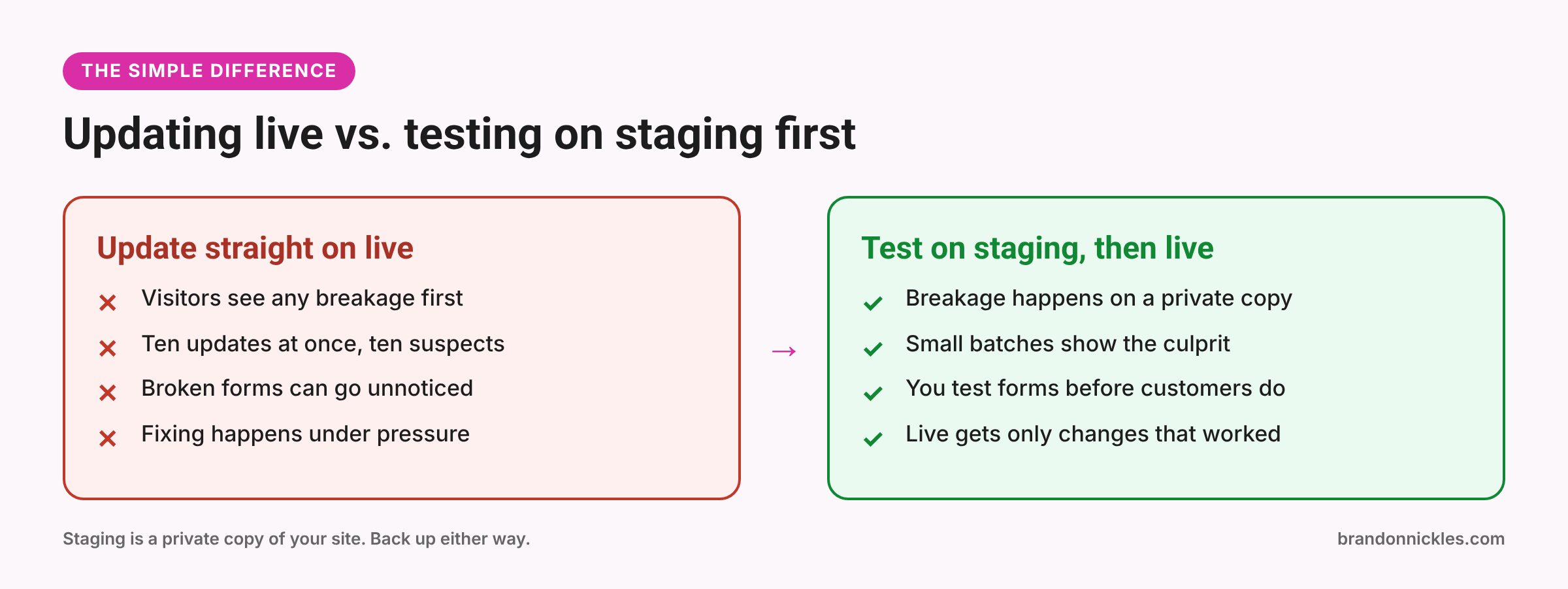
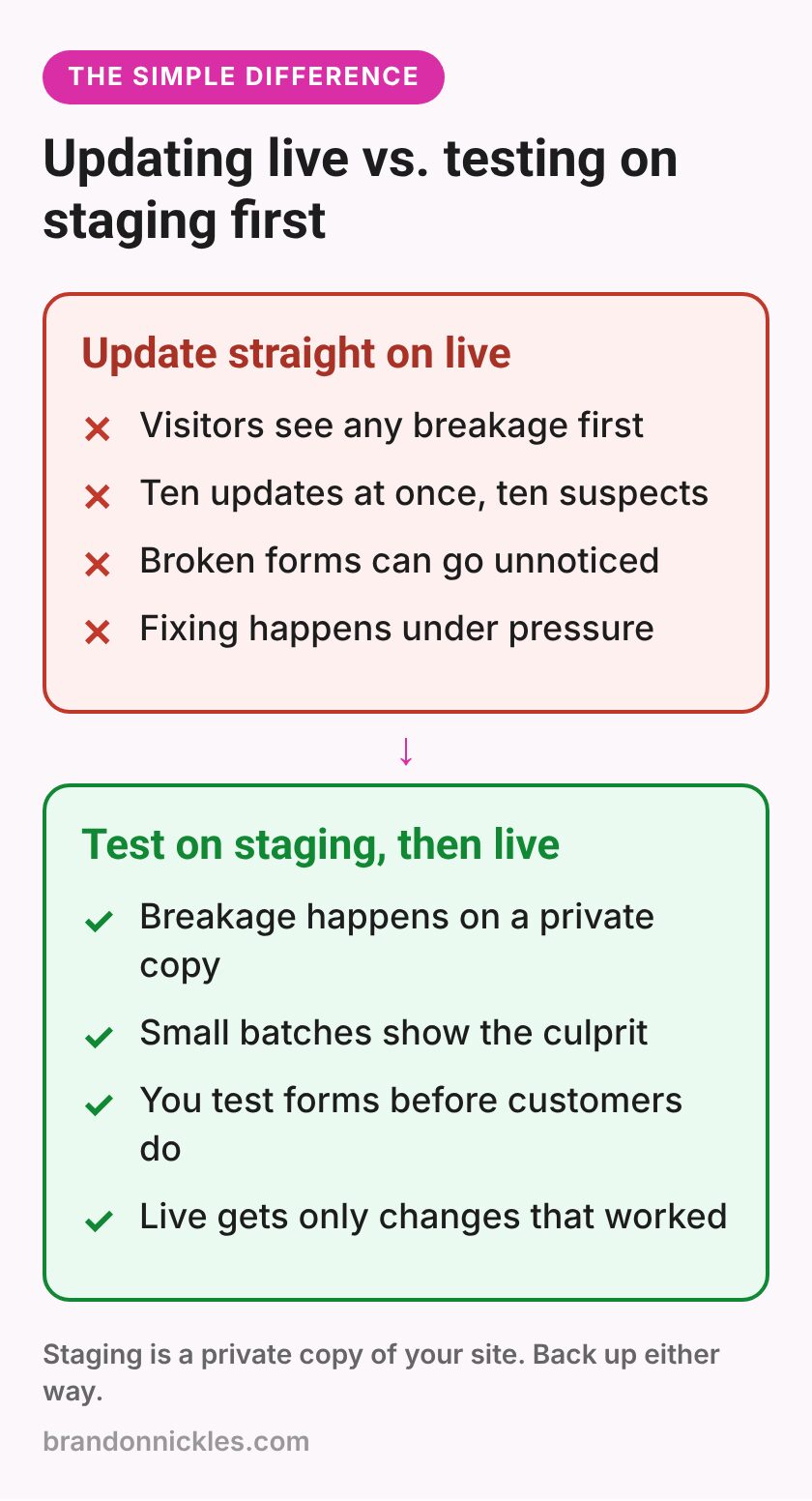
And here's the part that stings: the damage isn't always obvious. A fatal error is loud. A checkout button that stops working, a form that shows "thank you" but never delivers the email, or a mobile menu that won't open can go unnoticed for days. If you've read my post on the white screen of death and other common WordPress errors, a lot of those problems start right after an update.
What staging protects you from (and what it doesn't)
Let's be honest about what staging can and can't do.
Staging is great at catching:
- Fatal errors and white screens after a plugin, theme, or core update
- Layout changes caused by builder or theme updates
- Plugin conflicts that show up as broken features
- Problems from a PHP version change
- Mistakes in design or content changes before anyone sees them
Staging won't automatically catch:
- Problems you don't test for. If you never submit the form on staging, you won't know it broke.
- Issues tied to live-only things, like payment gateways in live mode, real email delivery, or third-party services that only talk to your real domain.
- Problems caused by traffic, like a slow plugin that only bogs down under real visitor load.
- Anything that changes on the live site after you made the staging copy, like new orders, form entries, or blog comments.
That last one is important, and we'll come back to it in the mistakes section.
How to set up staging, depending on your hosting
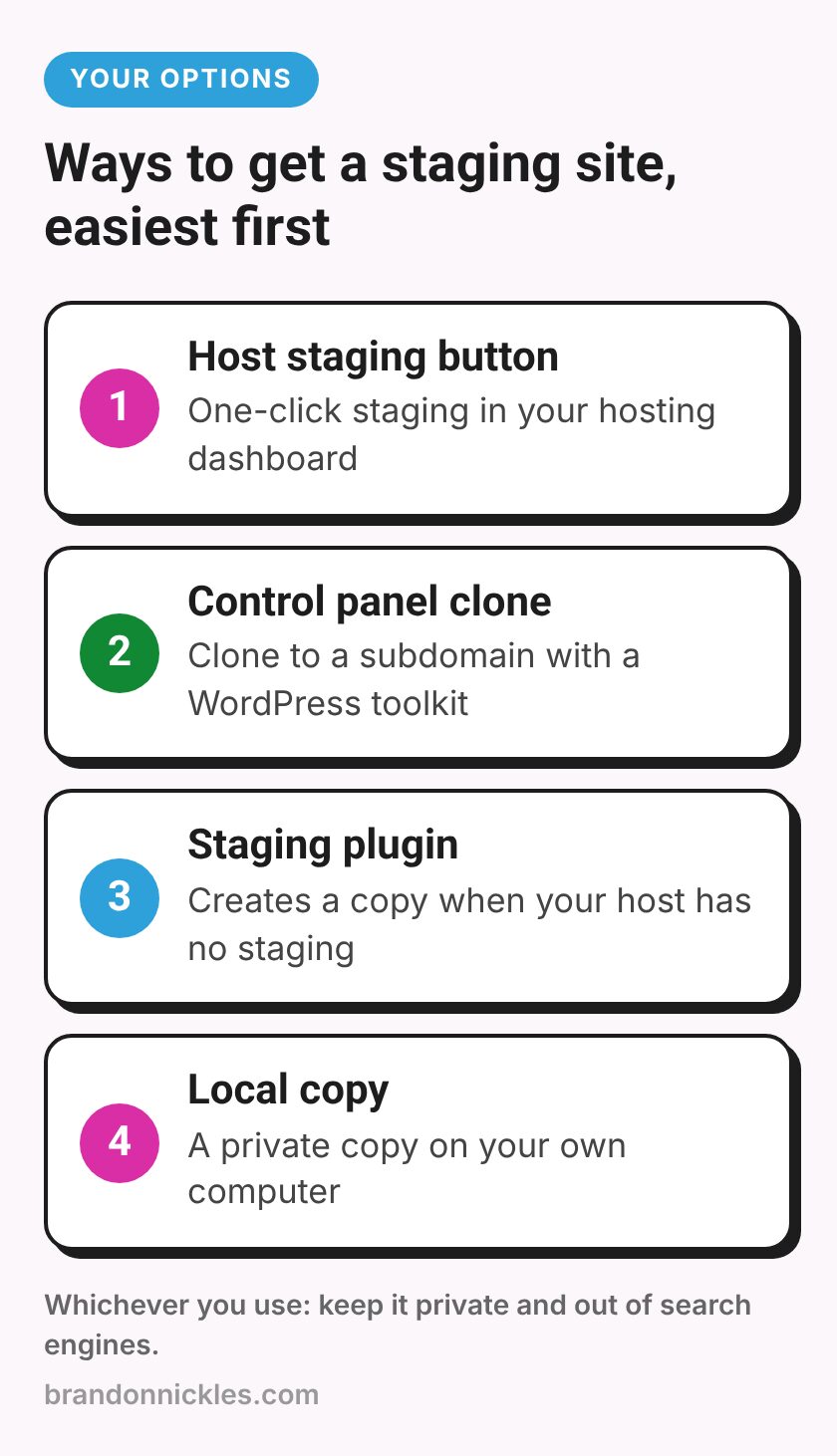
How you get a staging site depends mostly on where your site is hosted. Here are the common situations, from easiest to most hands-on.
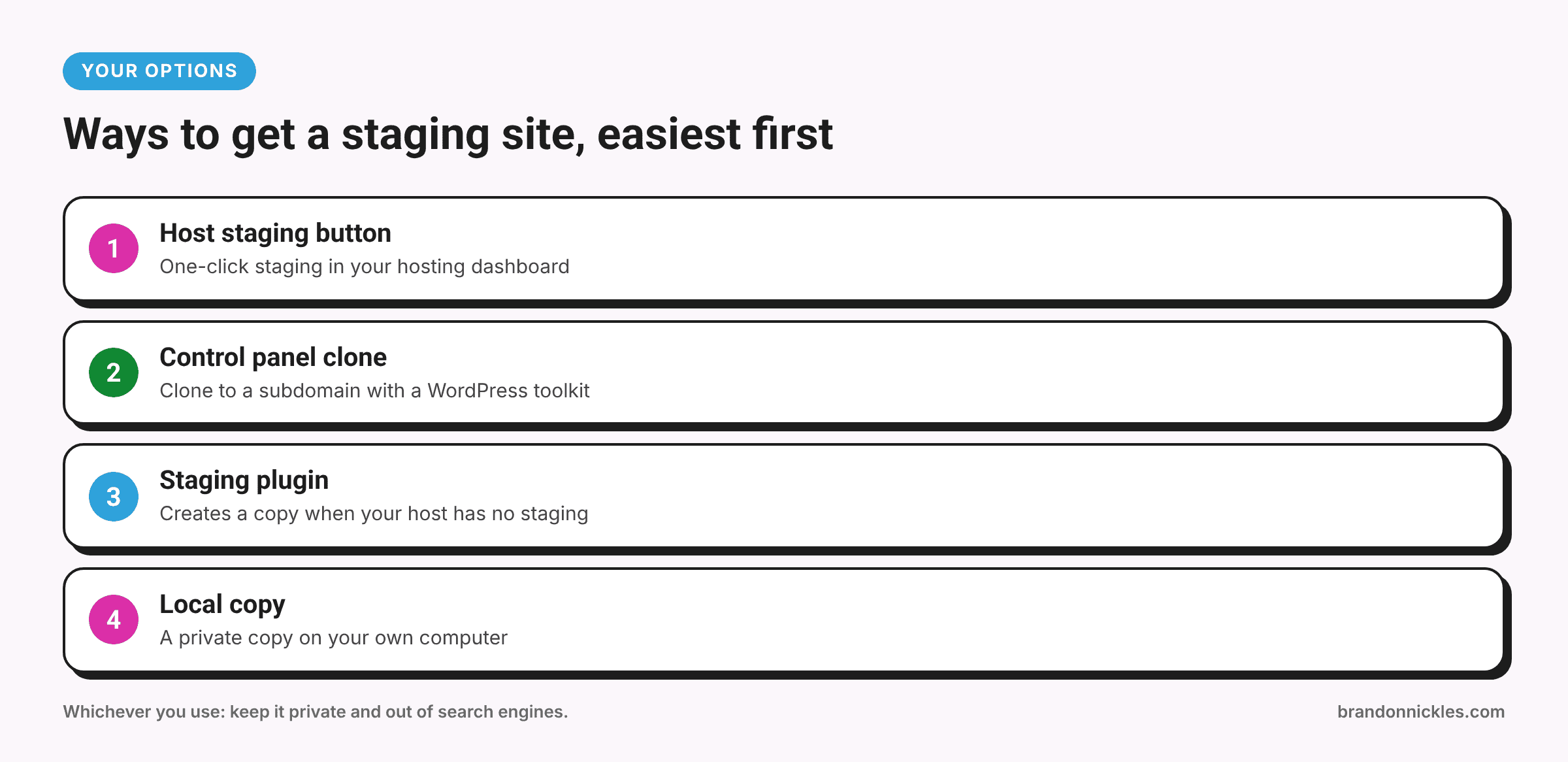
Option 1: Your host has a staging button
Many managed WordPress hosts, and some regular hosts, include one-click staging in their control panel. You click "Create staging," wait a few minutes, and get a private copy at a temporary address.
If your host offers this, use it. It's usually the cleanest option because the host handles the copying, the separate address, and often the "push to live" step.
Look in your hosting dashboard for words like "Staging," "Create a staging site," or "Clone." If you can't find it, ask your host's support directly: "Do you offer a staging environment for WordPress, and does it include a way to push changes to live?"
Option 2: Your host uses cPanel with a WordPress toolkit
A lot of basic shared hosting runs on cPanel. Some of those accounts include a WordPress management tool that can clone a site to a subdomain. Others have a site installer with a "staging" or "clone" feature.
If you have one of those, you can create a subdomain like staging.yoursite.com, clone the site there, and make sure the clone is set to discourage search engines. In WordPress that setting is under Settings → Reading → Discourage search engines from indexing this site. It's a request, not a lock, so password-protecting the staging site is even better.
Option 3: Use a staging or migration plugin
If your host doesn't offer staging at all, there are WordPress plugins that create a staging copy for you, either in a subfolder on the same hosting account or on a separate service. Some free versions let you create a staging copy but charge for pushing changes back to live.
Before you go this route, check two things: that your hosting account has enough disk space for a second copy, and that the plugin is well maintained and widely used. A staging tool that breaks things is the opposite of what you want.
Option 4: A local copy on your own computer
Developers often run a copy of the site on their own computer using a local WordPress tool. It's fast and fully private, but it takes some technical comfort, and things like email and some plugins behave differently locally. For most business owners, options 1 to 3 are more practical.
Whichever route you take, the goal is the same: a private copy that matches your live site closely enough that if an update works there, it'll very likely work on the real thing.
A simple staging + update workflow you can follow
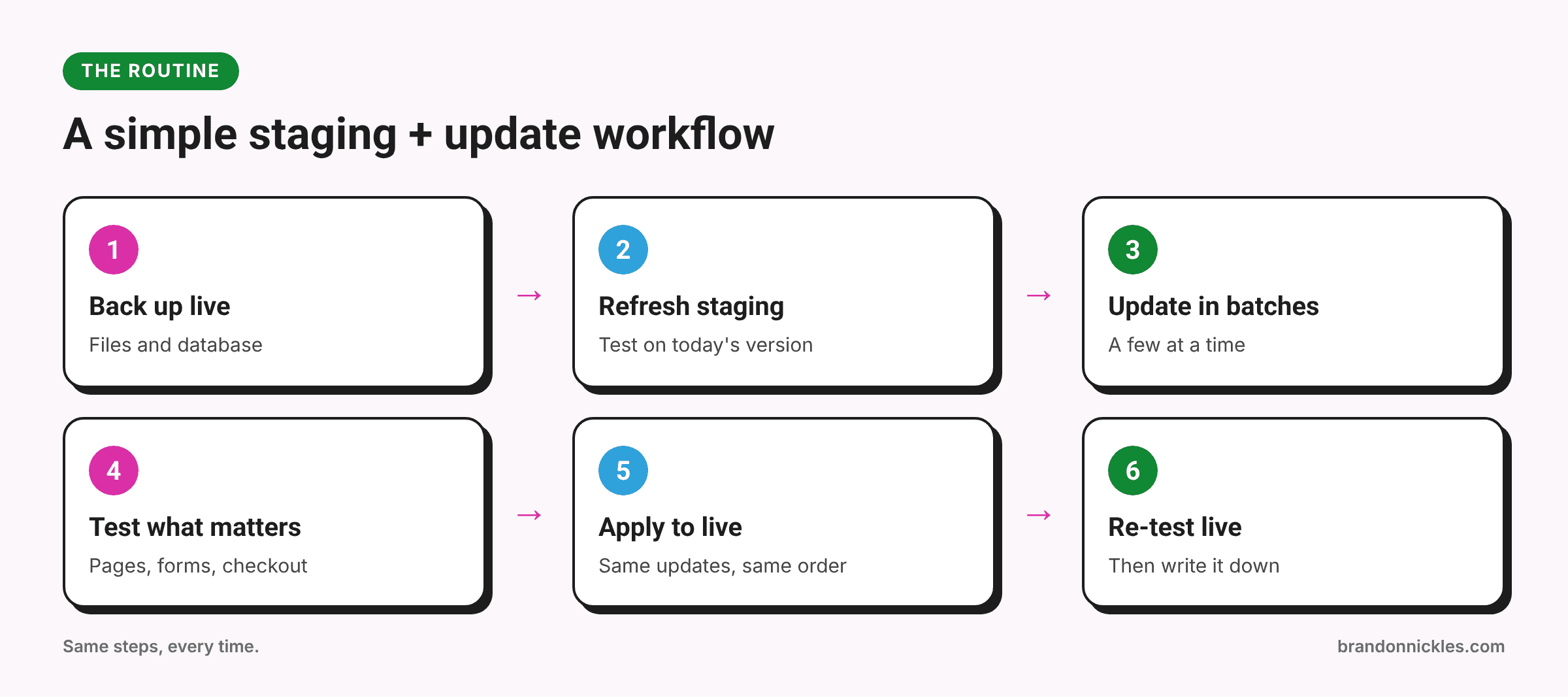
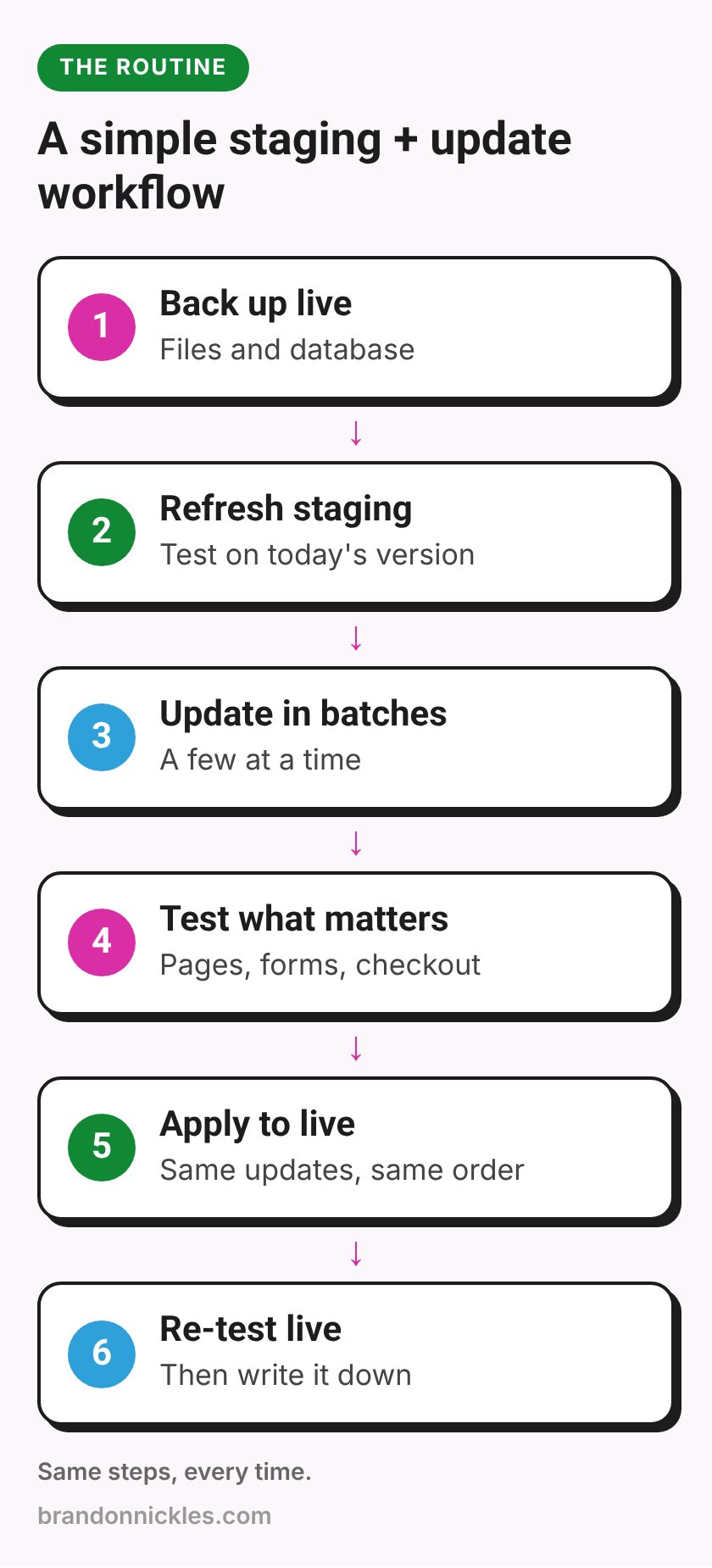
Here's the routine I'd recommend for most small business sites. It's not complicated. The point is doing it the same way every time.
- Take a fresh backup of the live site. Files and database. Make sure you know how to restore it. A backup you've never tested is a hope, not a plan.
- Refresh staging from live. Copy the live site to staging so you're testing on today's version, not one from three months ago.
- Update on staging, in small batches. Start with the big ones: WordPress core, your theme or page builder, and plugins that handle forms, e-commerce, caching, or security. Update a few at a time so you know what caused any problem.
- Test what matters. Use a short checklist (there's one below). Load key pages on desktop and on your phone, submit your forms, and check anything that makes you money.
- Fix or hold back anything that breaks. If one plugin update causes trouble, you can wait for a patch, roll that one plugin back on staging, or look for a replacement. The live site stays untouched while you figure it out.
- Apply the same updates to live. Either push from staging (if your host supports it and you're careful about data, see below), or simply run the same updates on the live site in the same order.
- Test the live site again, quickly. Same checklist, faster pass. Clear any caching so you're seeing the real current version.
- Write down what you did. Date, what was updated, anything odd. When something breaks a month later, this note is gold.
That's it. On a typical small site, once you're used to it, this becomes a routine rather than a project.
Pitfalls that still break live sites (even with staging)
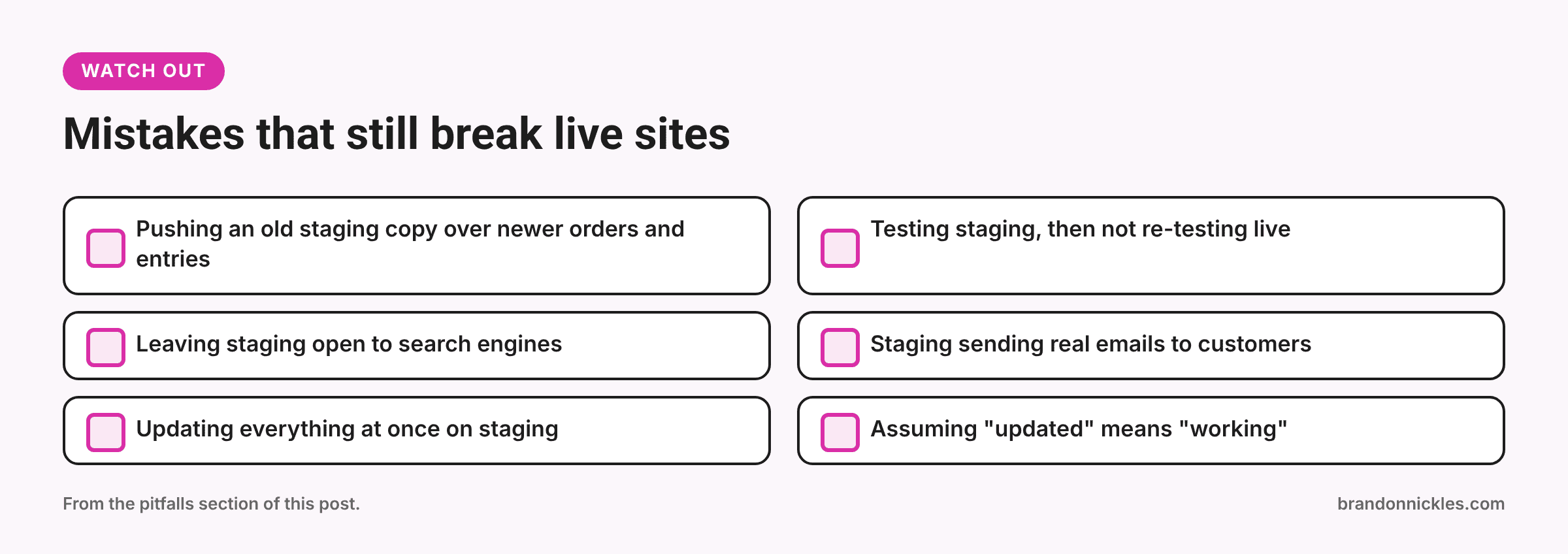
Having a staging site doesn't make you bulletproof. Here are the mistakes I see most often.
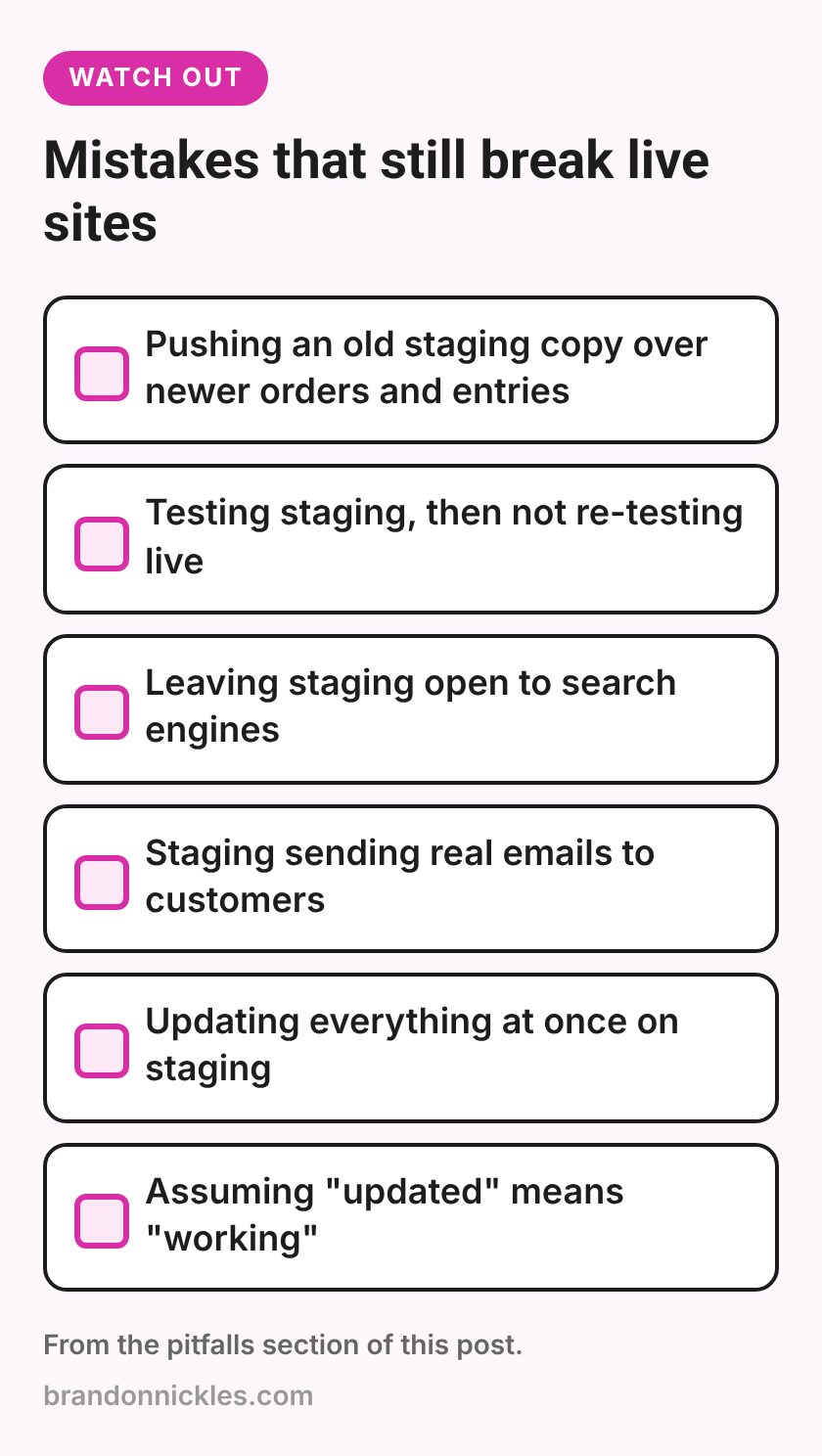
Pushing an old staging copy over newer live data
This is the big one. Say you made a staging copy two weeks ago. Since then, you've had new orders, new form entries, new blog comments, and maybe a new user or two on the live site. If you "push to live" the whole database from staging, you can overwrite all of that with your two-week-old copy.
How to avoid it: Refresh staging right before you test. Know whether your host's push button copies files only, the database only, or both. For sites with orders, bookings, or memberships, it's often safer to just run the same updates on live instead of pushing a database.
Testing on staging, then forgetting to test live
Live has things staging doesn't: real email sending, live payment settings, a CDN, server-level caching. An update that looked perfect on staging can still behave differently on live.
How to avoid it: Do a quick checklist pass on the live site right after updating. Submit the real contact form and make sure the email actually arrives.
Leaving staging open to Google
If your staging site is public and indexable, search engines can find it. Now you have two copies of your site competing with each other, and people may land on an outdated version.
How to avoid it: Password-protect staging, turn on "Discourage search engines," and delete staging copies you're no longer using.
Staging that sends real emails
Some staging copies still send emails: order notifications, form notifications, even newsletters if your email marketing plugin syncs. Customers getting confusing test emails is not a great look.
How to avoid it: Many hosts disable email on staging automatically. If yours doesn't, use a plugin or setting that blocks outgoing mail on the staging copy, and double-check that any integrations (payment, CRM, email lists) are in test mode or disconnected there.
Updating everything at once on staging too
Staging makes it safe to break things, but if you update fifteen plugins at once and something breaks, you still have fifteen suspects.
How to avoid it: Small batches. It's slower for about ten minutes and much faster when something goes wrong.
Assuming "it updated" means "it works"
WordPress will happily tell you an update completed successfully while your form plugin silently stopped sending notifications.
How to avoid it: Test the actual features, not just whether the page loads.
Need a hand with updates?
If you'd rather not be the person who finds out a plugin update broke the checkout, I can help. I back up your site before I touch it, test updates properly, and fix what breaks if something goes sideways. If an update has already broken something, I can track down the cause and fix it the right way.
Okay, back to the practical part: what to actually test.
Your post-update test checklist
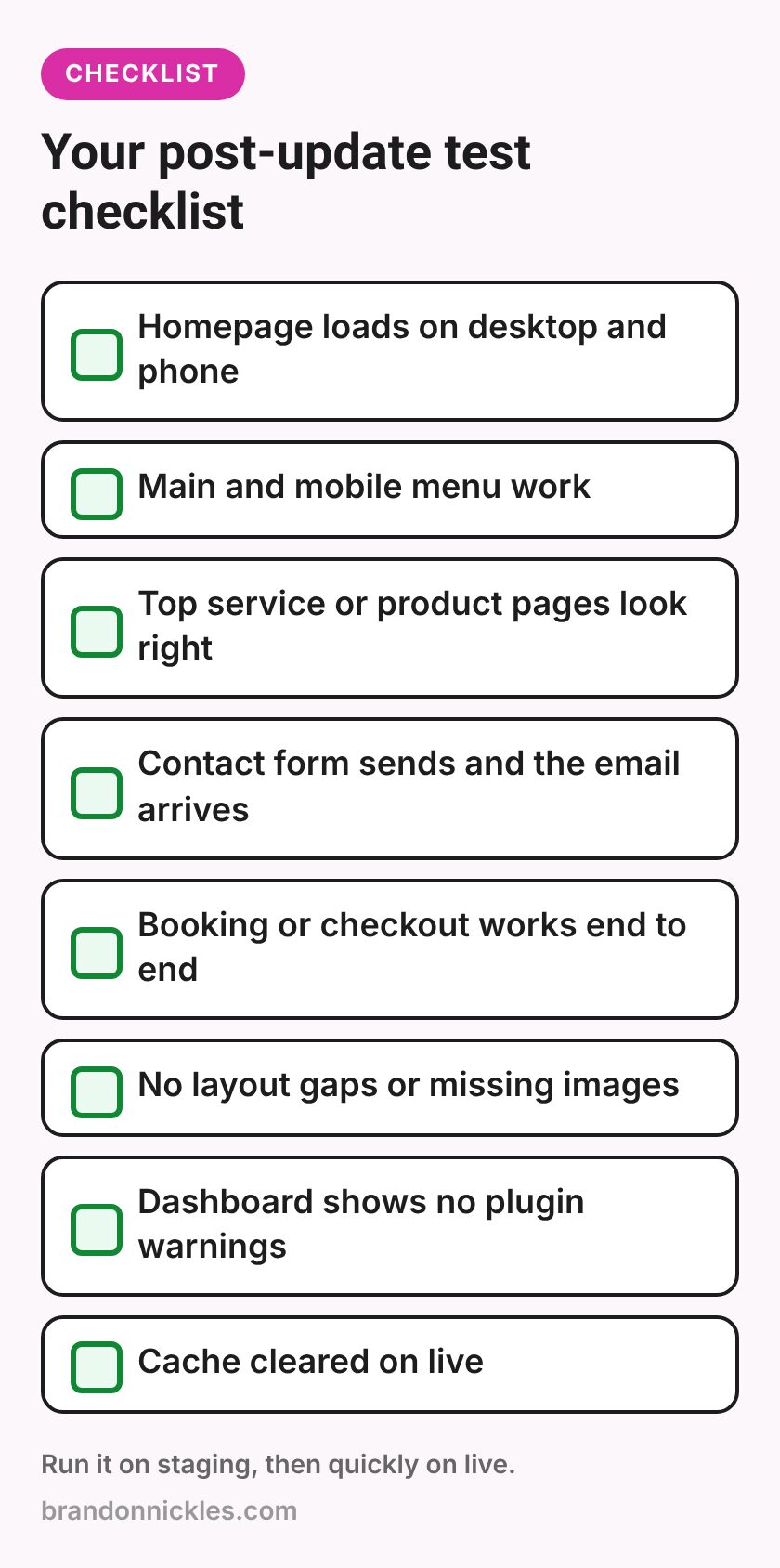
Keep this list somewhere handy and run it on staging, then quickly on live:
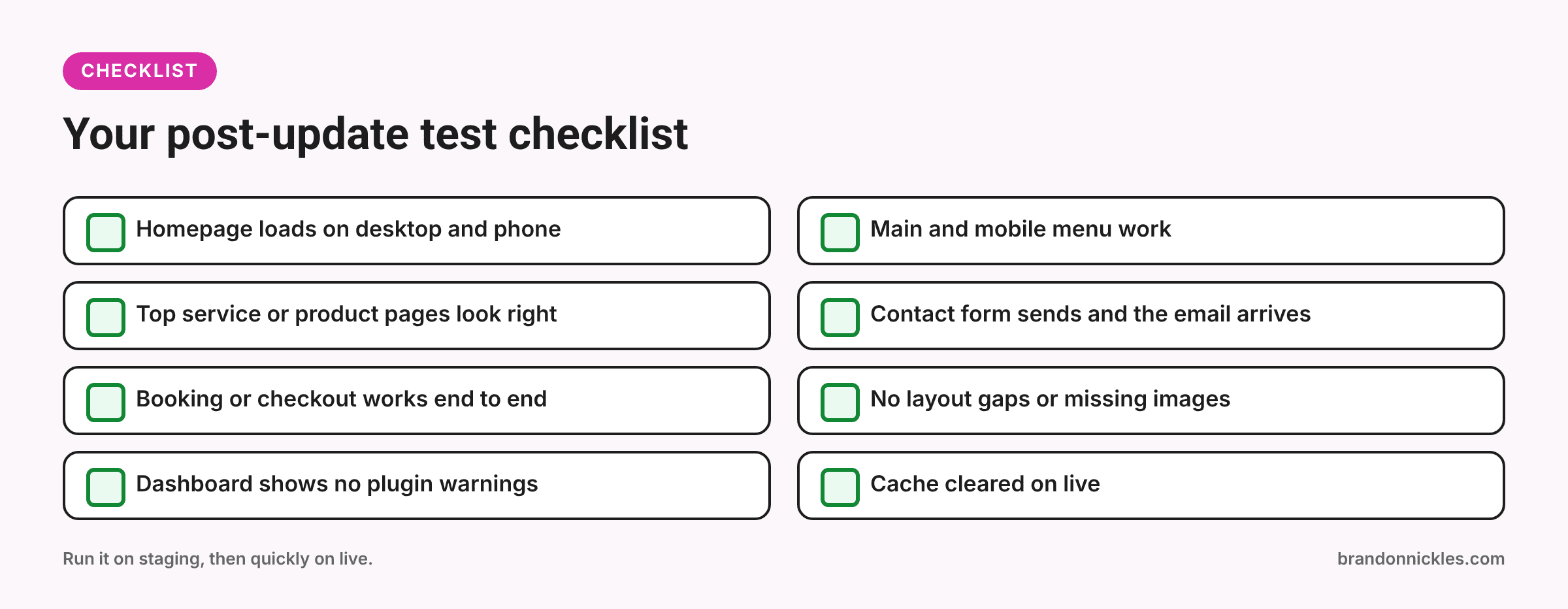
- Homepage loads on desktop and phone, with no error messages
- Main menu works, including the mobile menu
- Your top three or four service or product pages look right
- Contact form submits, and the notification email actually arrives
- Any booking, quote, or checkout flow works start to finish (in test mode on staging)
- Logged-in areas work, if you have memberships or customer accounts
- No new layout gaps, overlapping text, or missing images
- WordPress dashboard loads and the plugins page shows no warnings
- Caching cleared on live after updating
If you use tracking, add one more line: check that your key conversion events still fire. My lead tracking checklist walks through how to test that.
When a staging + backup workflow pays for itself
I'm not going to pretend every site needs an elaborate process. A hobby blog that nobody depends on can probably survive an hour of downtime.
But a proper workflow is worth it when:
- Your site brings in leads, calls, bookings, or sales. If a broken form means missed enquiries, catching it before it goes live is the whole point.
- You run WooCommerce or another store. Orders, payments, and stock levels are exactly the things you don't want to discover are broken.
- The site has a lot of plugins or custom code. More moving parts means more ways for an update to collide with something.
- You're on an older site. Older themes, builders, and plugins are more likely to struggle with new versions of WordPress or PHP.
- Nobody is watching the site day to day. If problems can go unnoticed for a week, prevention matters more.
Here's the honest way to think about it: compare the time a staging routine takes with what it would cost you if your site were broken or your forms weren't working for a few days. For most businesses that rely on their website, the routine wins easily.
When it makes sense to hand this off
Some people enjoy running their own updates. If that's you and you follow a routine like the one above, great.
Handing it off makes sense when:
- You keep putting updates off because you're worried about breaking something
- You've already had an update break your site at least once
- You don't have staging and don't want to figure it out
- You'd rather spend that time running your business
With my managed WordPress hosting, updates, backups, and monitoring are handled for you, so you're not the one deciding whether to click "Update all." And if you're already on another host and just want someone to handle updates or fix something an update broke, I work on WordPress sites hosted anywhere.
Frequently asked questions
Do I really need staging for small plugin updates?
Not every minor update will cause trouble. The problem is you can't tell in advance which one will. If your site matters to your business, testing on staging first is a cheap habit that prevents expensive surprises. At minimum, take a backup before every update.
Is a backup enough without staging?
A backup lets you recover after something breaks. Staging helps you avoid breaking the live site in the first place. You want both. Backups are your safety net; staging is looking before you jump.
Will a staging site hurt my SEO?
Only if search engines can find and index it. Password-protect it, turn on "Discourage search engines," and delete old staging copies you no longer need.
Should I turn on automatic plugin updates?
It depends on the plugin and the site. Auto-updates can be fine for small, simple plugins, especially security fixes. For your page builder, e-commerce, forms, and anything complex, I prefer testing first. Whatever you choose, make sure backups and monitoring are in place.
My host doesn't offer staging. What now?
You can use a staging plugin, set up a clone on a subdomain if your control panel supports it, or have a developer set one up for you. If staging comes up a lot, it might also be a sign it's time to look at hosting built for WordPress. My post on shared hosting vs. managed WordPress hosting covers that decision.
Ready to stop gambling on updates?
Updates are part of owning a WordPress site. Breaking your live site every few months doesn't have to be. If you'd like someone to set up a safe update routine, test updates properly, or fix what a recent update broke, I'm happy to help. I'll tell you honestly what's needed, and I reply the same day.
Email me at Brandon@brandonnickles.com.
And if you'd rather never think about updates again, take a look at my managed WordPress hosting. I handle the updates, backups, and monitoring so your site stays in good shape.